Linux Mint 22.3
Linux Mint 22.3 is a long term support release which will be supported until 2029. It comes with updated software and brings refinements and many new features to make your desktop experience more comfortable.
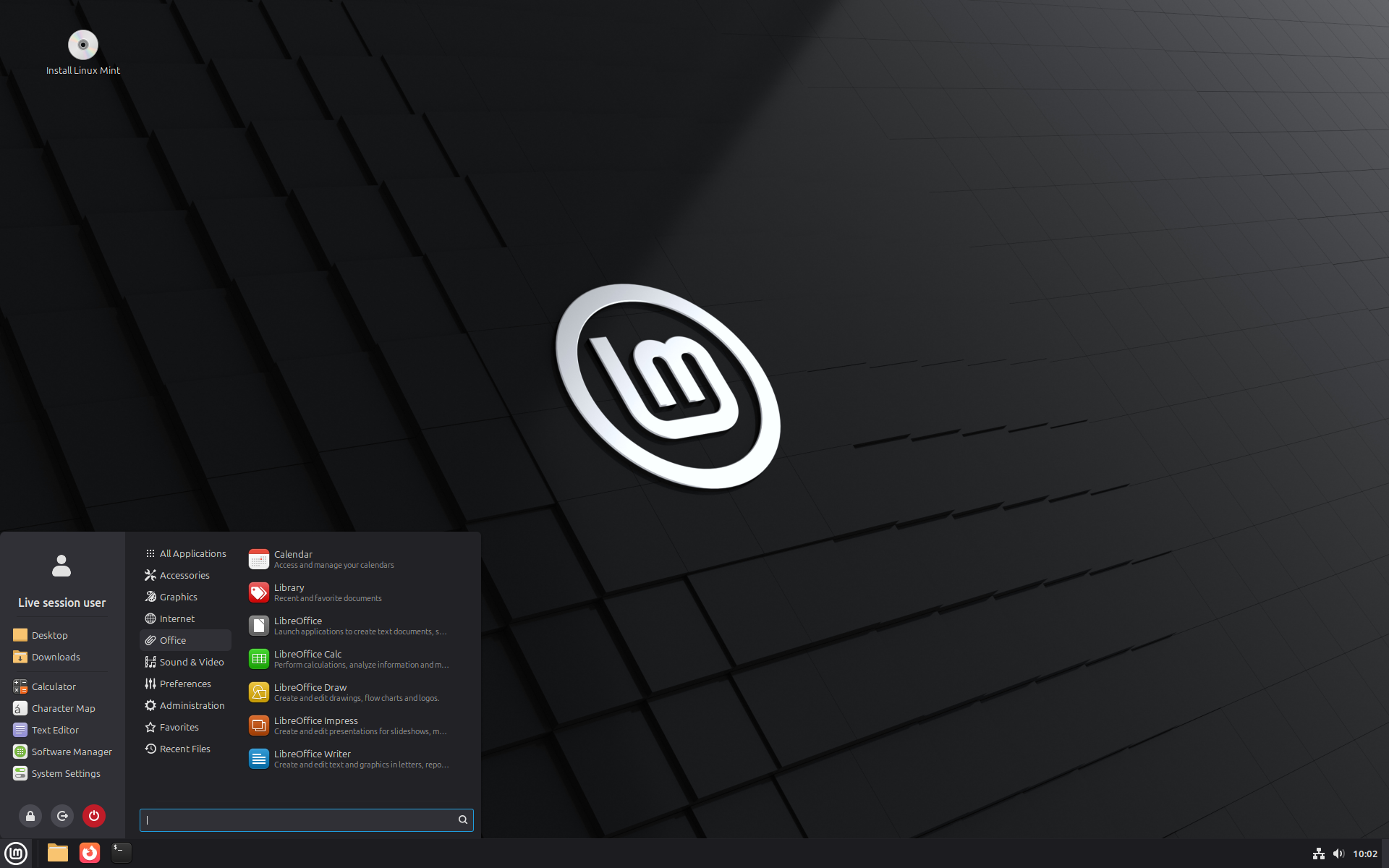
Linux Mint 22.3 "Zena"
Linux Mint 22.3 is a long term support release which will be supported until 2029. It comes with updated software and brings refinements and many new features to make your desktop experience more comfortable.
Despite our best efforts, things don't always work out of the box.
When troubleshooting issues and finding solutions, it is not enough to find people who can help; you also need to provide the information they need to understand the problem and recommend the right solution.
The steps involved in troubleshooting a hardware-related issue are usually:
We worked on making these steps a little bit easier.
The “System Reports” tool received many new features and it was rebranded as “System Information”.
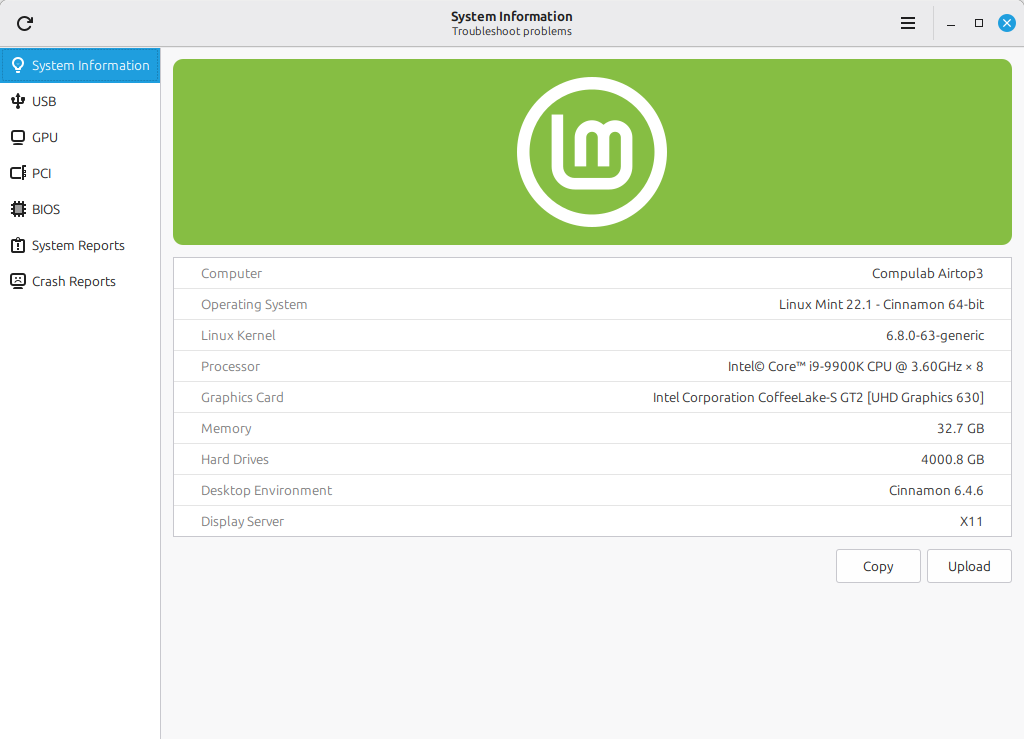
In addition to its “System Information”, “System Reports” and “Crash Reports” pages, the tool received 4 new pages to show you more information and help you troubleshoot common issues.
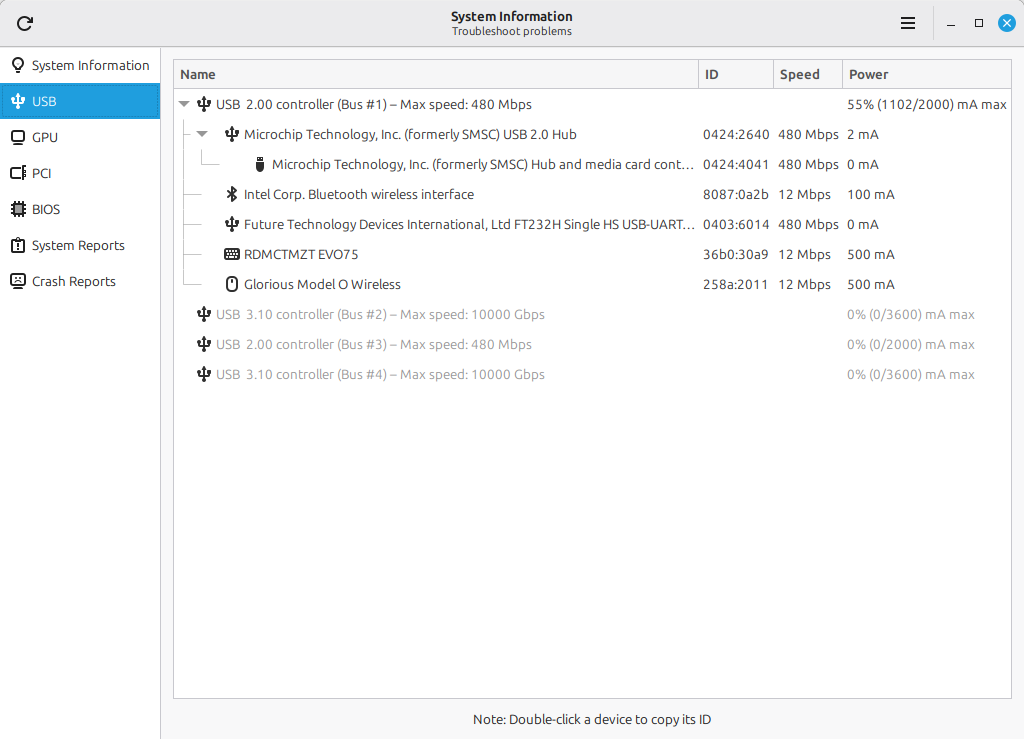
The “USB” page shows a detailed view of all plugged-in devices, including their type, name and ID (which uniquely identifies the device and its manufacturer).
Devices are grouped by USB controller, so you can see where each device is plugged and compare its connection speed and power usage with the controller's maximum connection speed and total power capacity. This helps troubleshoot common USB issues such as slow transfers or random disconnections.
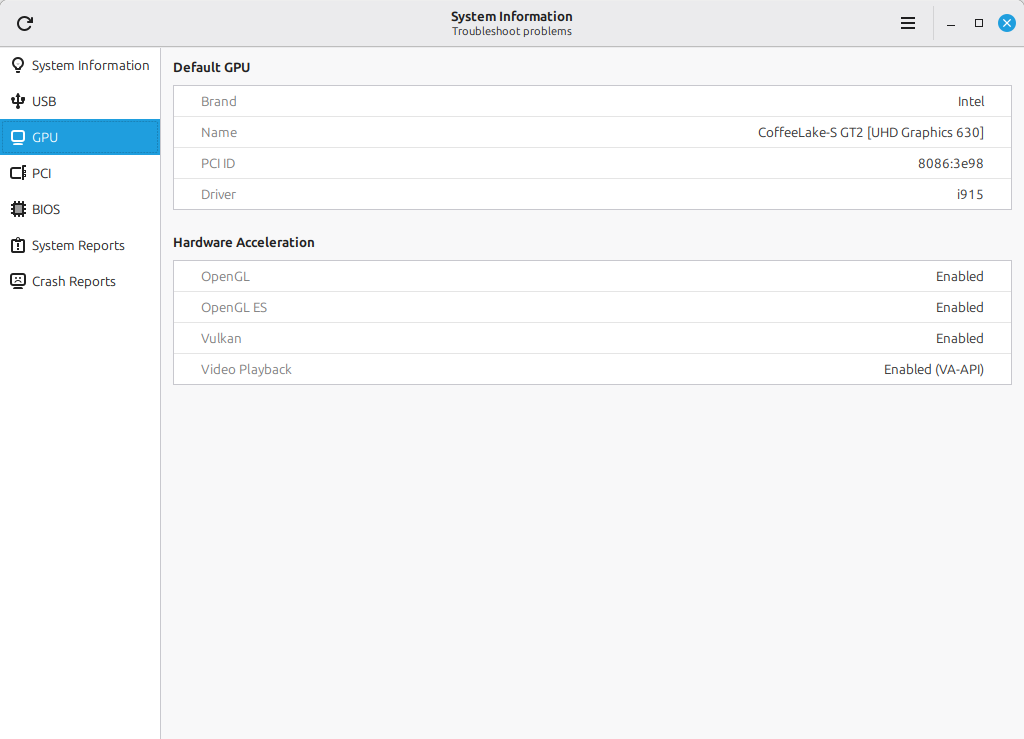
The “GPU” page shows information about your default graphics card and its support for hardware acceleration.
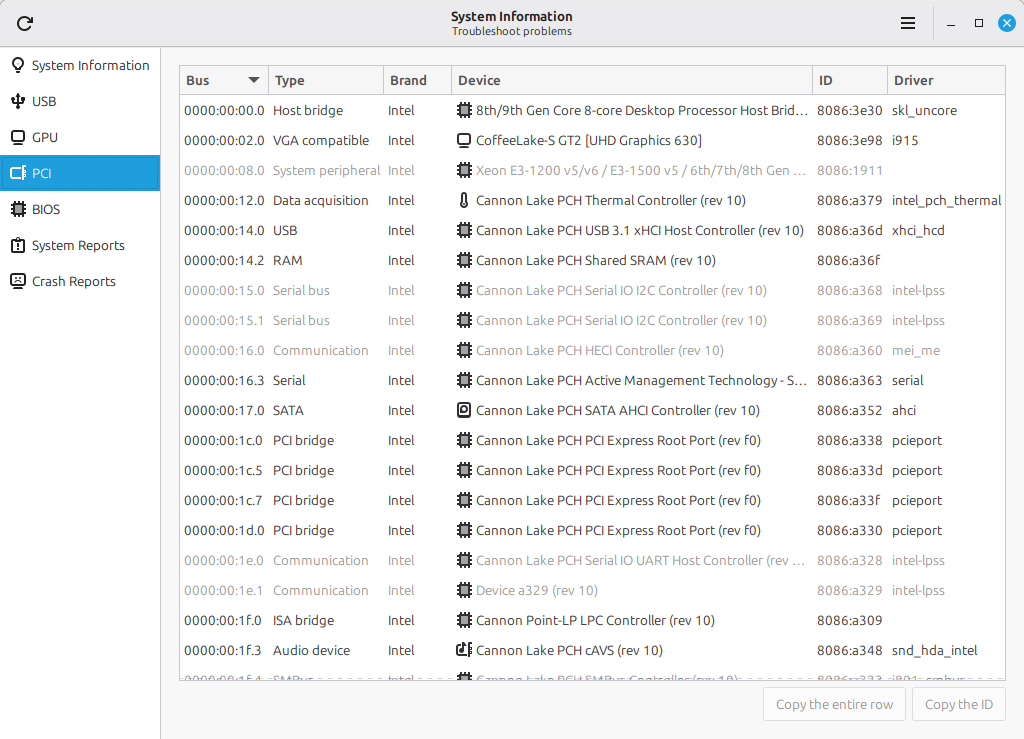
The “PCI” page gives you a detailed look at the internal components of the computer. The PCI ID and the driver in use are very useful when troubleshooting PCI devices.
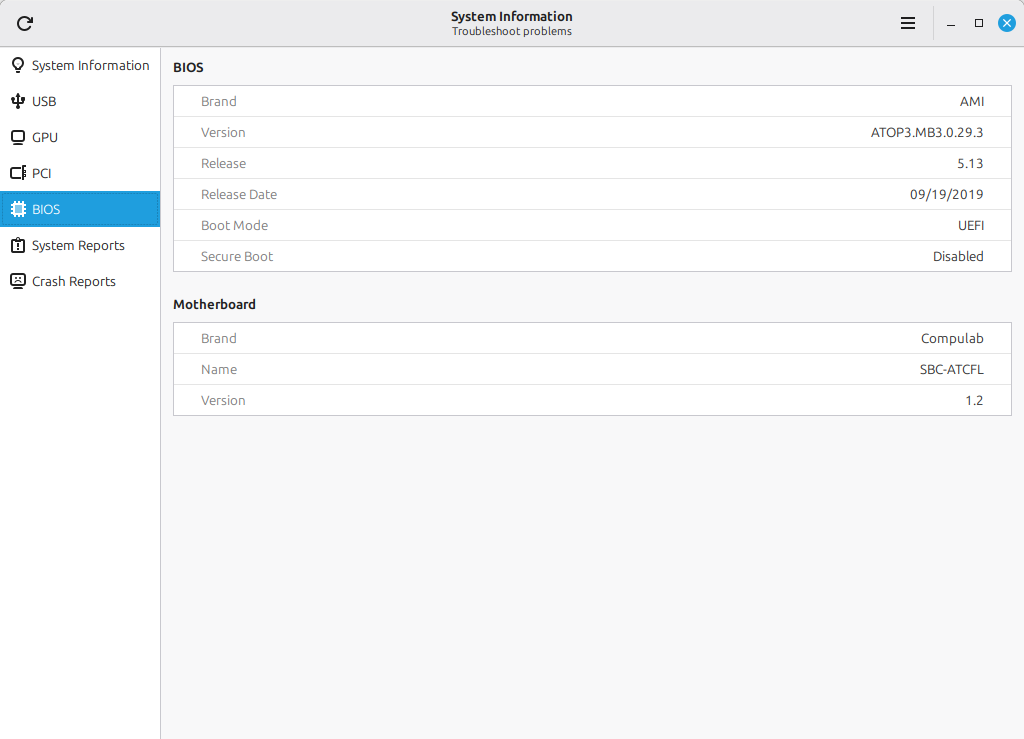
In the “BIOS” page you can find information about your motherboard, BIOS version, boot mode and Secure Boot.
A new tool called “System Administration” was implemented. Although its UI looks similar to the “System Information” tool, its goal is slightly different. This tool runs with administrator privileges and focuses on administration.
Currently, it has one page called “Boot menu”:
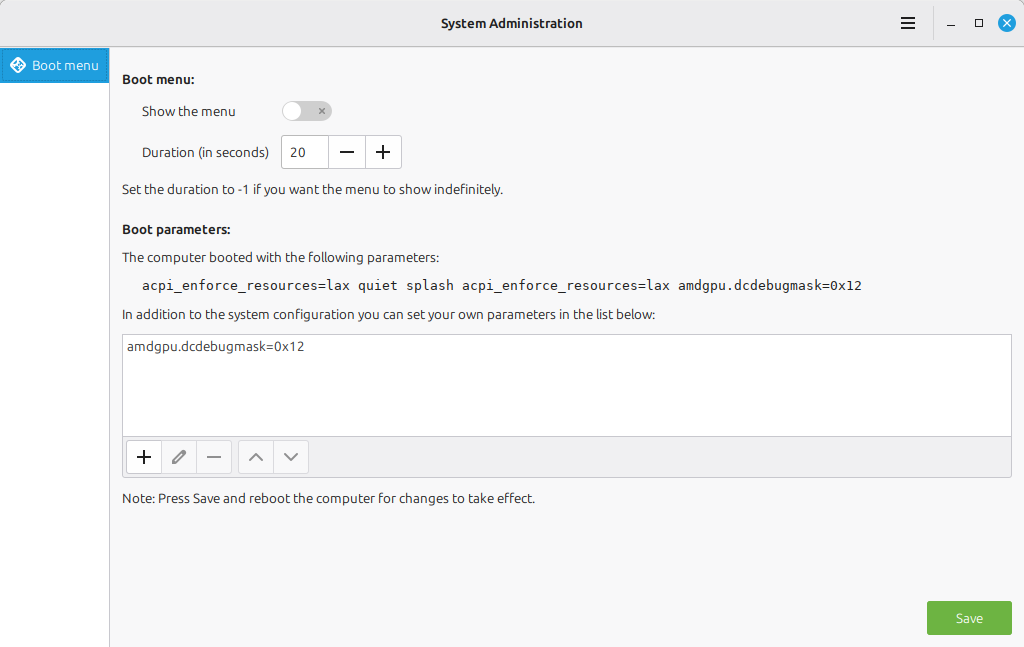
At the top you can show or hide the boot menu and set how long it stays visible before booting the default option. This is very useful if you're dual-booting or if you're using multiple kernel series.
In the second section you can add boot parameters. This is sometimes needed when dealing with hardware/driver issues.
Symbolic icons are simple, monochrome icons used throughout applications for buttons, menus, and status indicators. They scale cleanly at different sizes and remain clear in both light and dark interface themes.
They also streamline application development. Instead of creating and shipping their own icons, applications simply refer to icons by name and rely on the system to provide a consistent, high-quality implementation. This reduces duplication, speeds up development, and helps applications integrate seamlessly with the desktop environment.
Until recently, our applications relied on Adwaita for symbolic icons. As Adwaita no longer supports applications outside of GNOME, several symbolic icons were removed, resulting in regressions and missing icons.
To address this, a new XApp project called XSI (XApp Symbolic Icons) was created:https://github.com/xapp-project/xapp-symbolic-icons.
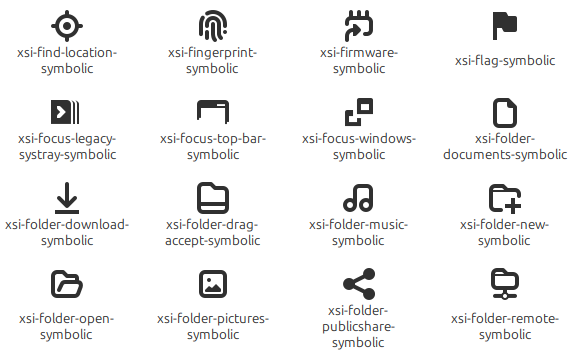
In addition to replacing missing symbolic icons, XSI introduces new ones as needed, giving applications more flexibility and eliminating the need to ship custom icons or rely on imperfect substitutes.
All XApp, Cinnamon, and Linux Mint projects have since migrated to XSI.
Cinnamon 6.6 features improved support for keyboard layouts and input methods.
In the past, the keyboard settings and the keyboard applet only handled traditional layouts.
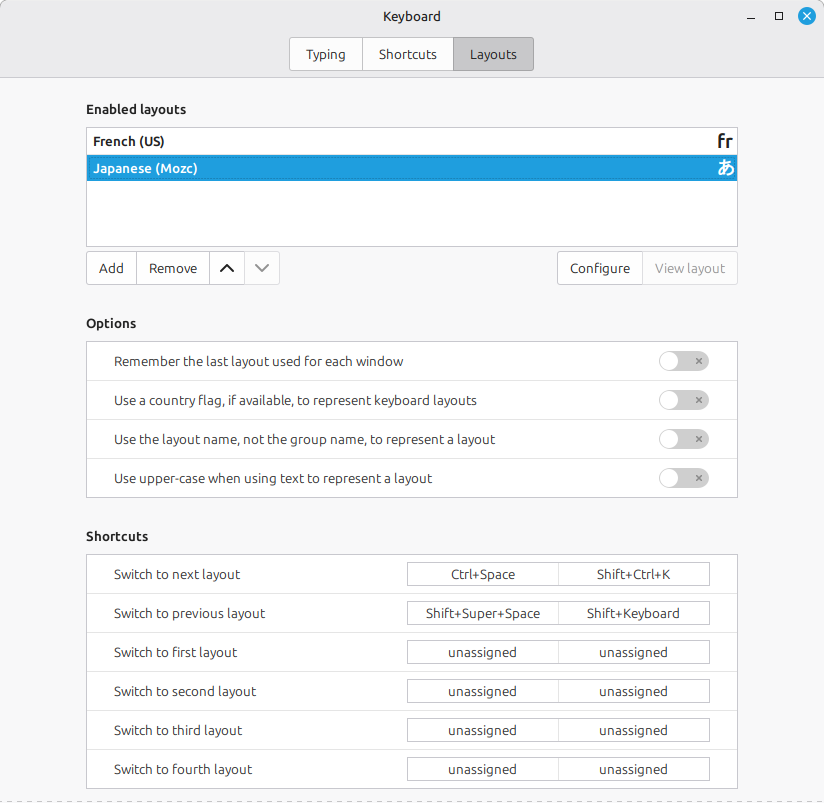
Going forward, traditional layouts and IBus input methods will be presented in the keyboard settings alongside each other, as if they were the same.
In this screenshot you can see a list of two layouts. One is a traditional XKB layout: French accents on a US ANSI layout. The other is actually an IBus input method: Japanese, using the Mozc engine.
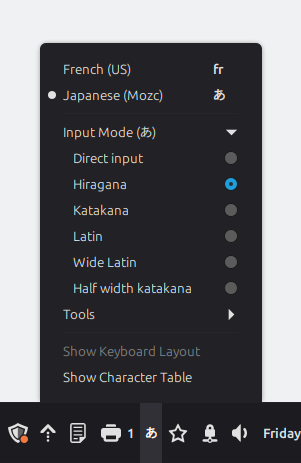
The keyboard applet also supports both types of layouts and all the features required by IBus:
Under the hood, the Cinnamon keyboard handling relied on libgnomekbd and only worked in X.Org.
This meant that Cinnamon under Wayland could only be used with an English (US) layout.
This new support is fully compatible with Wayland for both traditional layouts and IBus input methods.
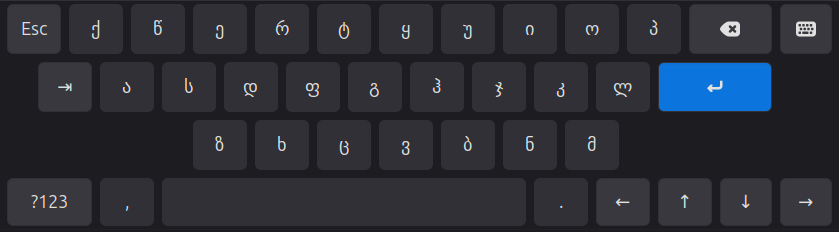
The on-screen keyboard (OSK) no longer relies on libcaribou. It was redesigned and implemented natively in Cinnamon.
It also received support for input methods and keyboard layout switch.
The Cinnamon application menu was redesigned and given a new layout.
It features a sidebar with sections for your avatar, places and favorite applications.
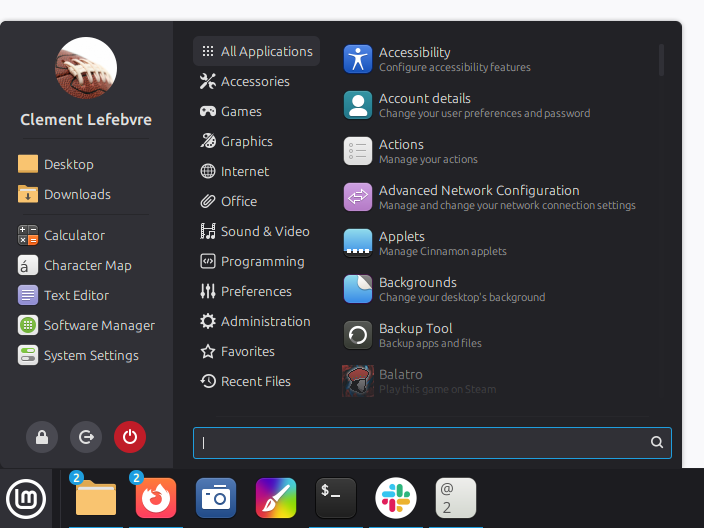
The category section was made smaller and less noticeable to keep more focus on the apps.
In the preferences it is possible to hide some of the elements to make the menu smaller or to dedicate the sidebar to only show places, bookmarks or favorite apps.
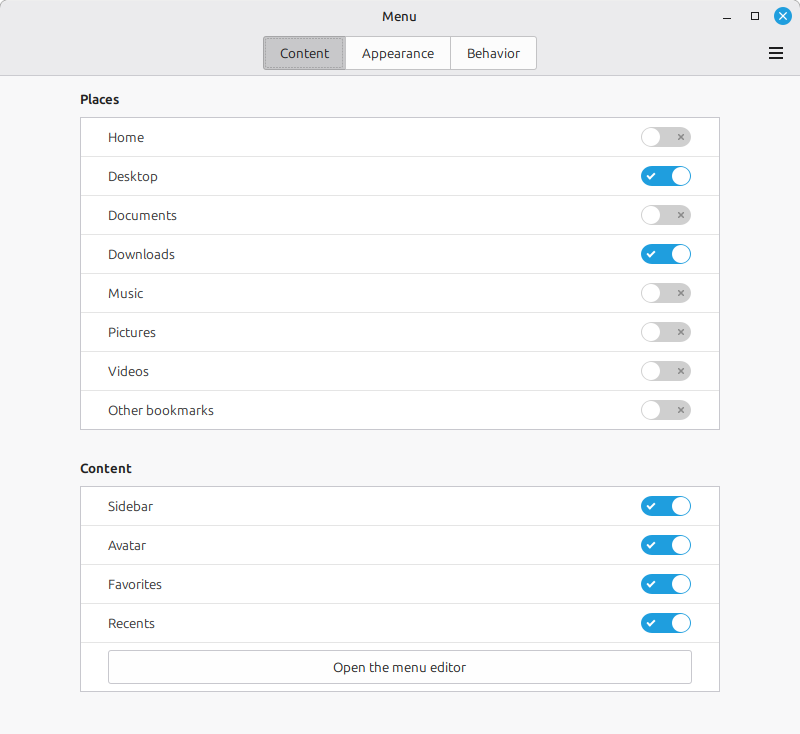
Special directories are treated individually and separately from other bookmarks.
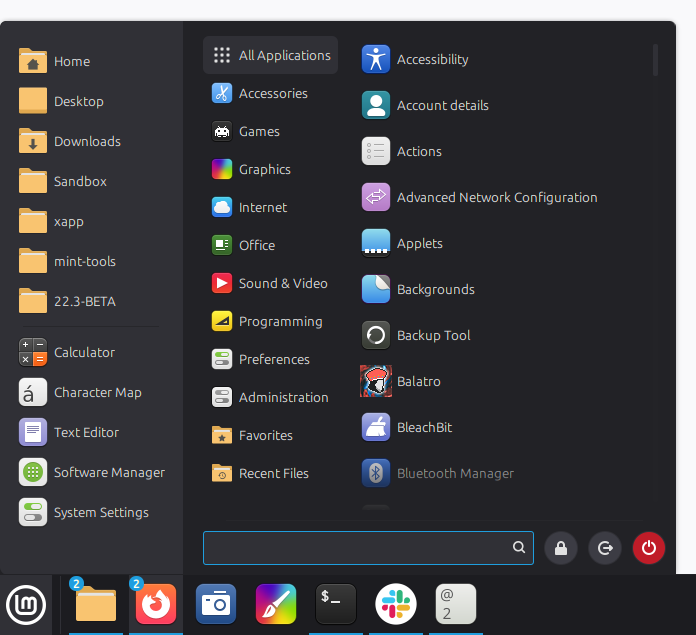
The categories can use fullcolor icons like they did in the past.
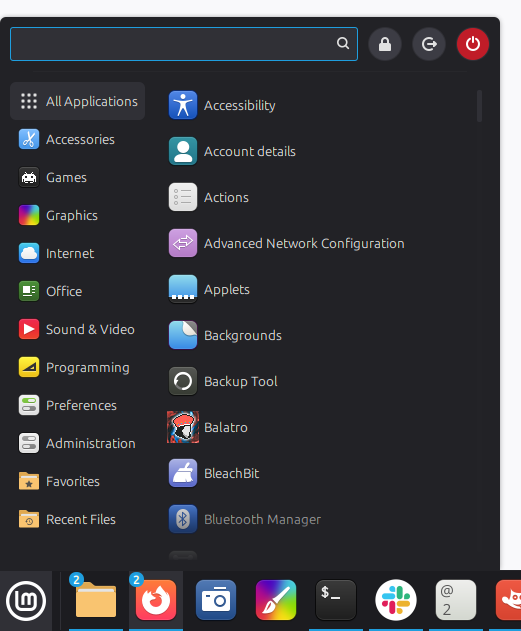
The position of the search bar and the system buttons can be configured so you can customize the layout. Here's an example of a different layout:
And here's an example with no sidebar at all:
The code for the menu applet was refactored and modernized for easier maintenance.
The keyboard navigation and refresh mechanisms in particular were greatly simplified.
Nemo 6.6 features a template manager:
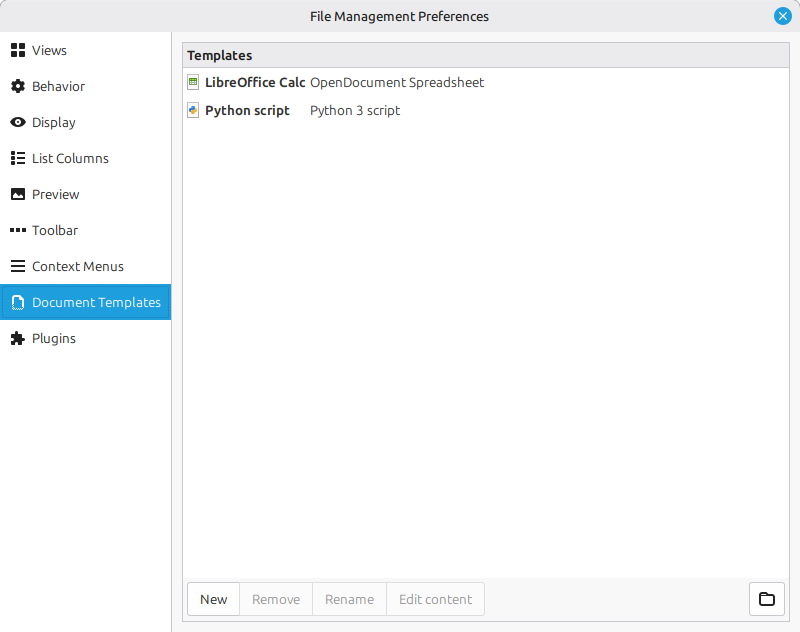
Templates are used to create new files when you right-click a directory and select "Create New Document".
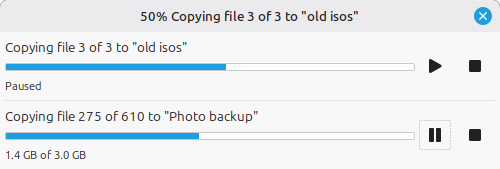
File operations (copying, moving, etc.) can be paused and resumed.
Search accuracy was improved. The helpers used internally by Nemo now use wildcards in mimetypes and are run concurrently. Regular expressions are used to match filenames.
When using split panes, the location is preserved until the main pane location changes.
Thumbnails support was improved.
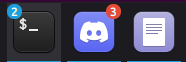
Whenever you miss a notification, it now shows a badge in your window list:
The workspace switcher applet was improved. Its desktop representation is much clearer than before. Only visible windows are shown, along with their icon:

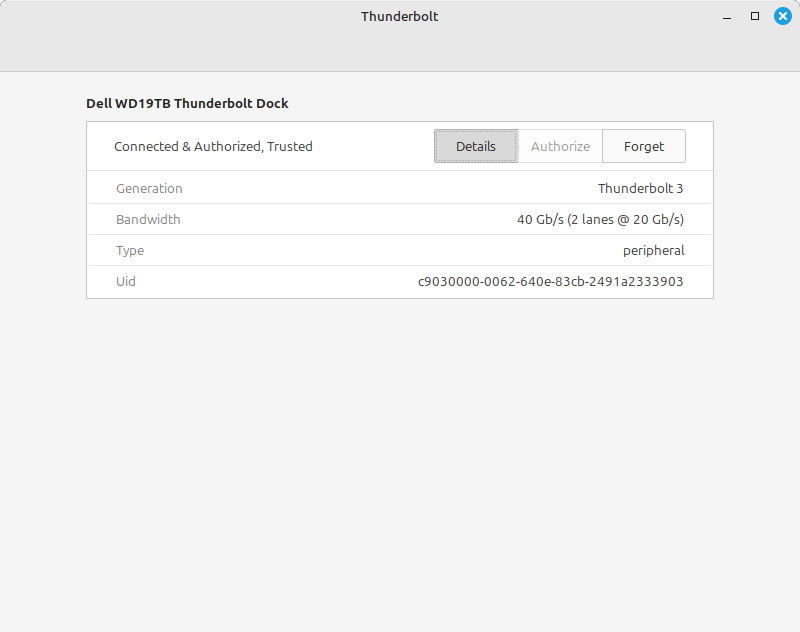
A new configuration tool was implemented to support Thunderbolt:
Night Light got a new applet and it's now possible to have it always on.
The Cinnamon window manager (muffin) received a lot of changes to improve its compatibility with Wayland.
Hot corners can now be visible in fullscreen mode.
Suspend was added to the list of battery-critical actions.
A configuration option was added to choose whether to scale up or down when using fractional scaling.
The Alt-Tab selector can be configured to only show windows from the current monitor.
The advanced section of the theme selector was improved. Themes are now grouped by family and variants.
Timeshift received the ability to pause/resume during snapshots.
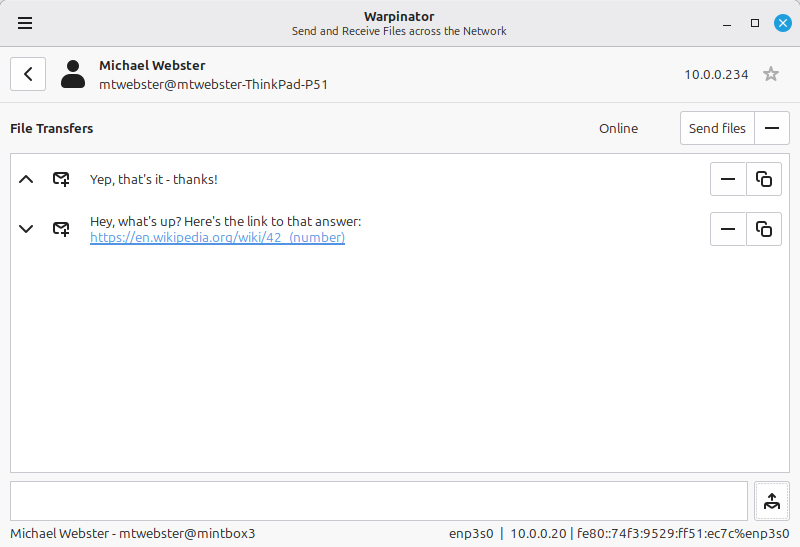
Warpinator received IPv6 support and the ability to send text messages.
Hypnotix hides the mouse cursor while in fullscreen and forwards keys towards MPV.
To boost development, multi-threading and gettext utility functions were added to the python3-xapp module. A new GTK widget called "ListEditor" was also introduced to make it easy to perform CRUD (add/edit/remove, etc.) operations on lists of strings, which are used a lot in our configuration.
Captain is now able to handle the installation of multiple packages via apt:// URLs. Package names need to be separated by commas.
The Update Manager's system tray shows a warning icon if a restart is recommended following the installation of updates.
A new "Include All" button was added in mintbackup to make it easy to add all hidden files and folders before making a backup.
Linux Mint 22.3 features a Linux kernel 6.14 and an Ubuntu Noble package base.
Linux Mint 22.3 will receive security updates until 2029.
Until 2026, future versions of Linux Mint will use the same package base as Linux Mint 22.3, making it trivial for people to upgrade.
Until 2026, the development team won't start working on a new base and will be fully focused on this one.