Linux Mint 27
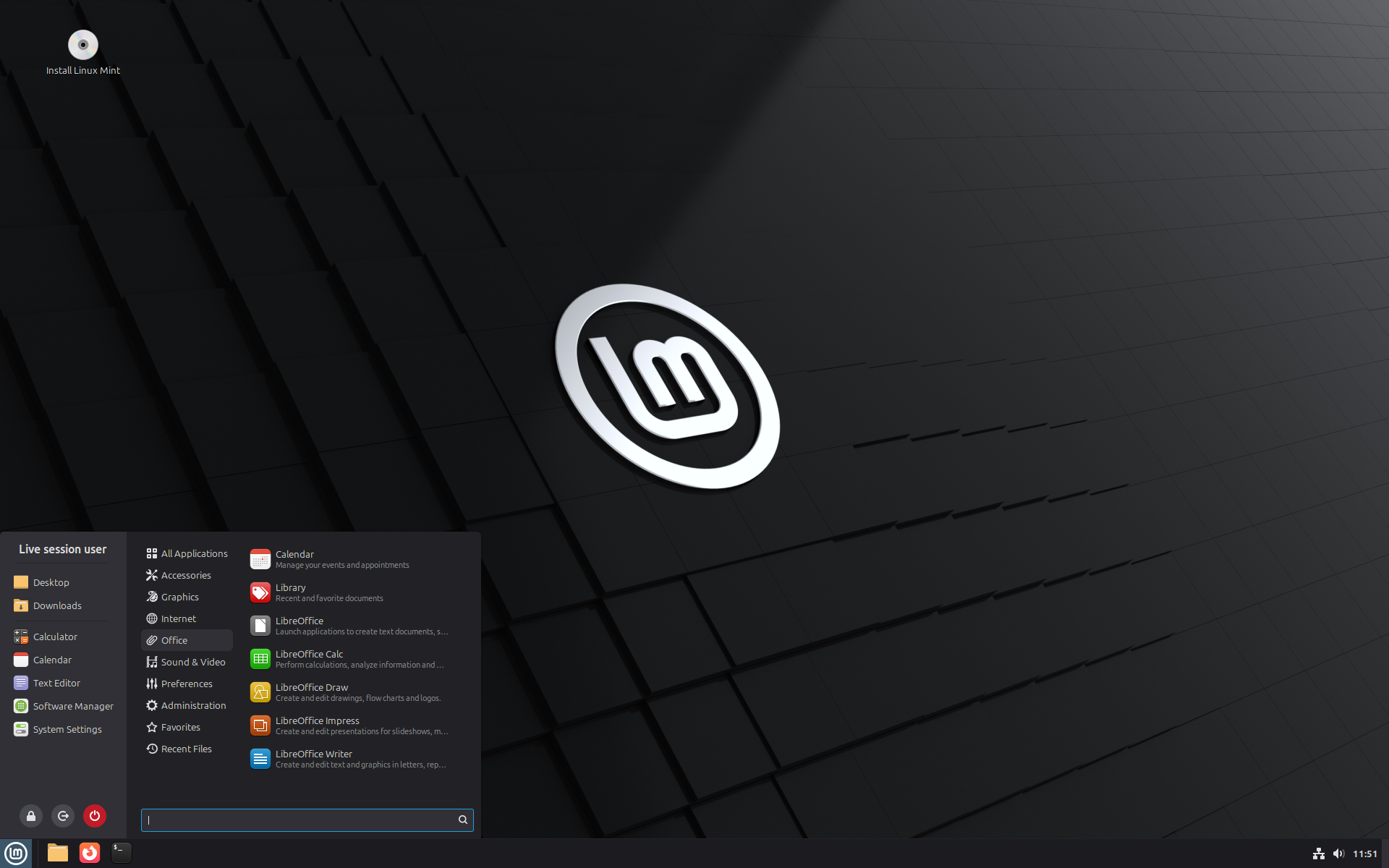
Linux Mint 27 is a long term support release which will be supported until 2031. It comes with updated software and brings refinements and many new features to make your desktop experience more comfortable.
Linux Mint 27 "Adrien"
Linux Mint 27 is a long term support release which will be supported until 2031. It comes with updated software and brings refinements and many new features to make your desktop experience more comfortable.
It’s alive! 🙂
Clockenstein is a brand new calendar application and the latest addition to the XApp family.
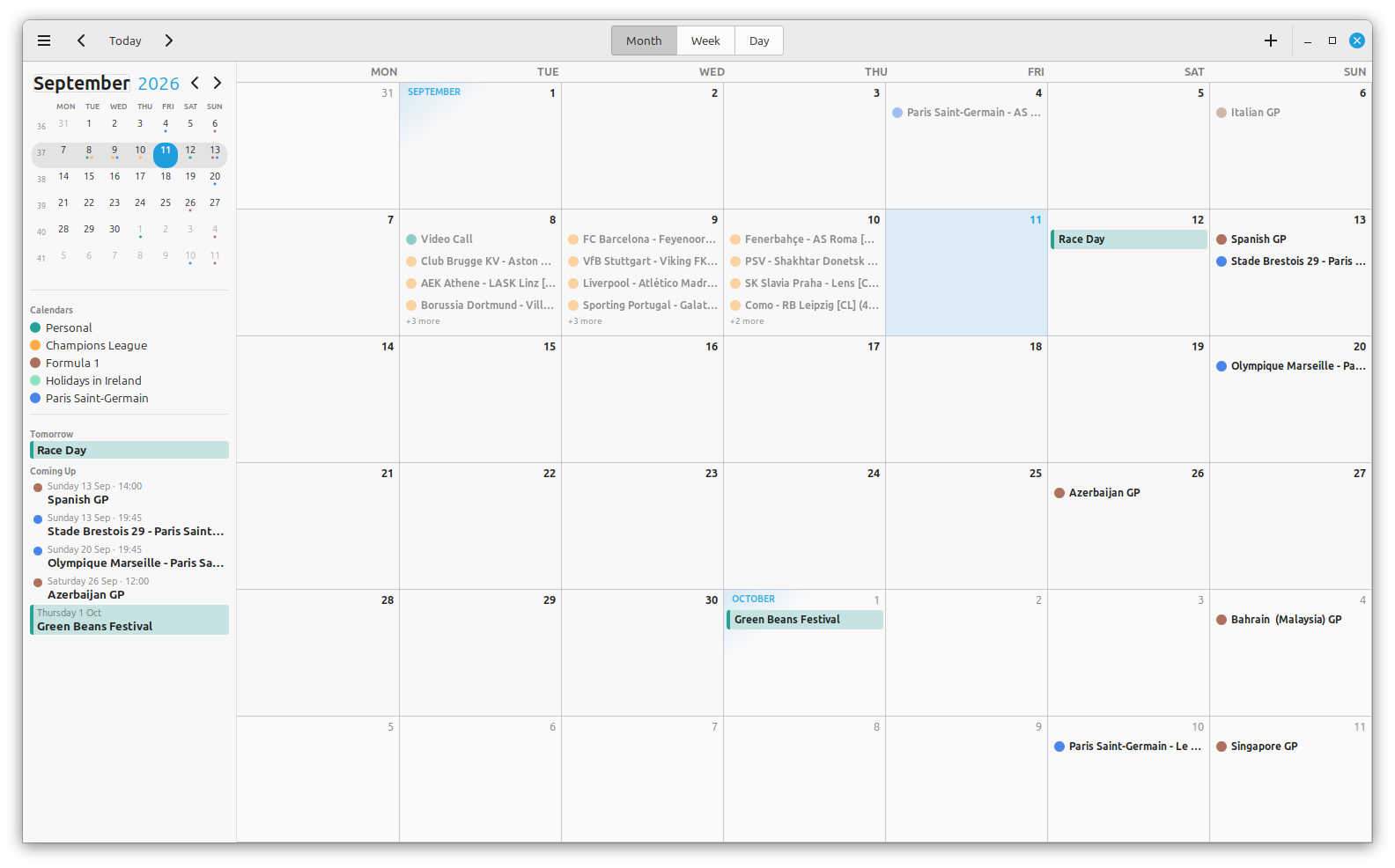
It supports multiple calendars and works with local calendars, Google Calendar and CalDAV services such as Nextcloud.
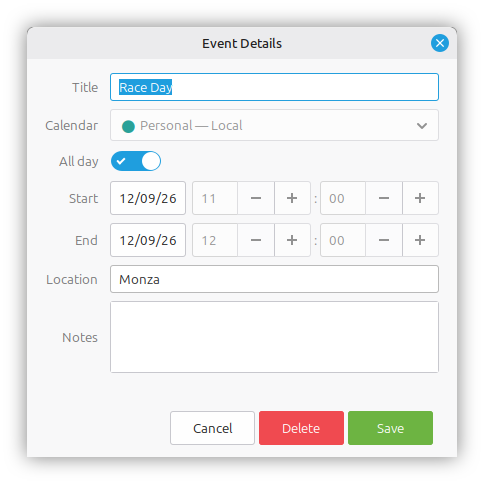
You can create and edit events and choose which calendar they belong to.
Down in the laboratory, there’s a little more going on. 🙂
When we worked on Clockenstein, one of the things we really wanted was to always know what was going on with remote calendars. Are they connected? Are they synchronized? And if something goes wrong, why?
Clockenstein keeps track of the state of each remote calendar and reports connection and synchronization issues in the application. If a calendar can’t be reached, you can still see its events, but it becomes read-only until the connection is restored.
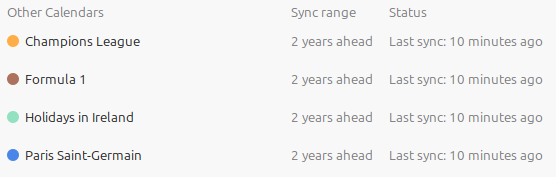
Clockenstein has its own daemon and its own notification agent. So it doesn’t matter whether the Calendar application is open or not.
The daemon keeps remote calendars synchronized and keeps an eye on upcoming events for calendars that have reminders enabled.
When a reminder is due, the notification agent presents it on the desktop. You can dismiss it or snooze it to be reminded again later.
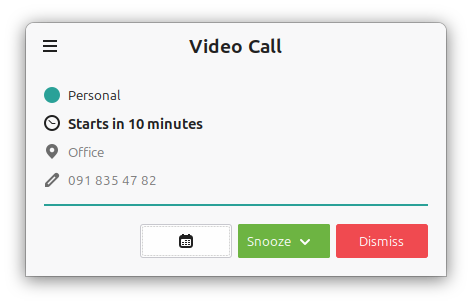
Finally, Clockenstein provides interfaces for desktop environments to interact with it, and even to replace its notification agent. The Cinnamon clock applet is fully compatible with these interfaces, so you can still see your calendar events directly from the panel.
Alongside the new calendar, Clockenstein comes with an app for managing alarms called “Clocks”.
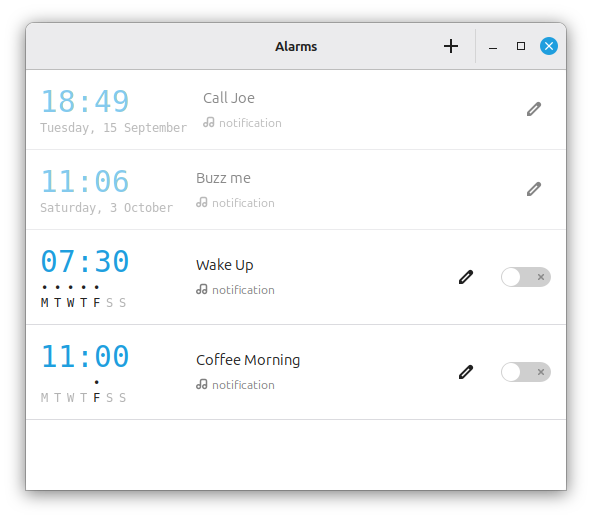
The application takes inspiration from Android, both in its interface and how it works.
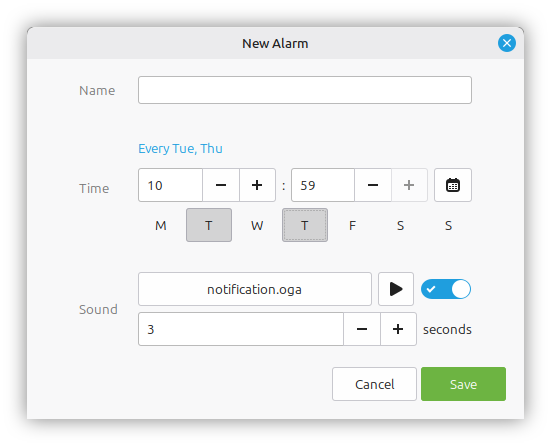
It’s intuitive and really easy to use.
You can set recurring alarms, choose custom sounds, and receive notifications even when the application isn’t running.
Alarm notifications are handled by the Clockenstein daemon and notification agent.
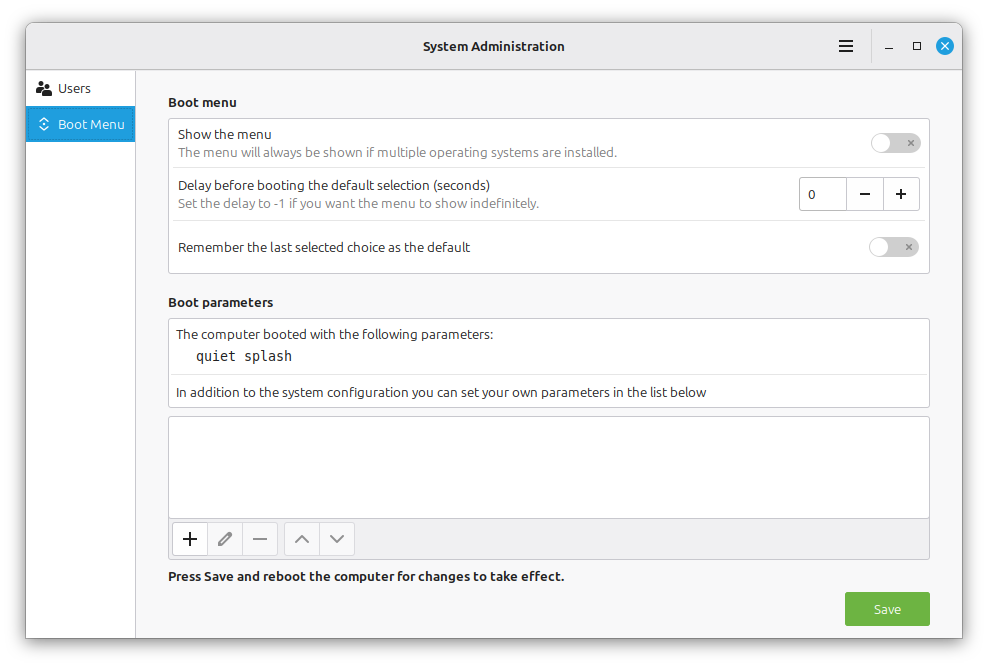
In Linux Mint 27, System Administration brings more system settings together in one place. It has new tools for managing user accounts, setting system-wide environment variables, choosing which kernel series to track and configuring sleep modes.
In Linux Mint 27, you manage users and account details in System Administration on Cinnamon, Xfce and MATE.
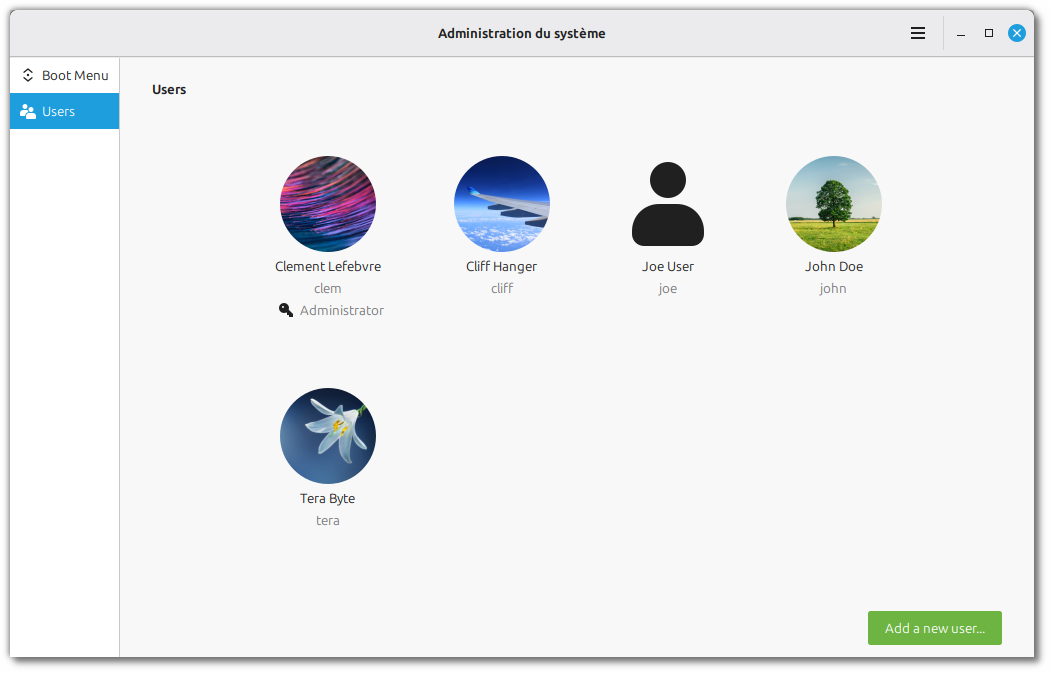
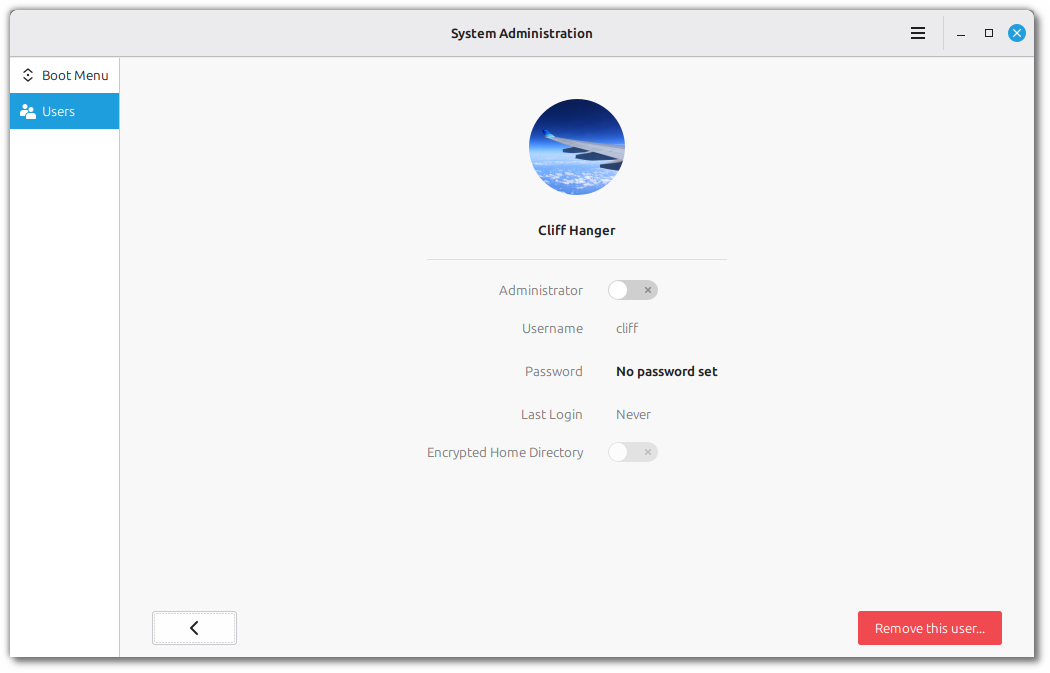
The user management page focuses on everyday tasks. After an administrator creates an account, the new user can choose a password and finish setting up the account on their own. You can now enable home directory encryption when creating a user account. Previously, this option was available only during installation.
You can use your webcam to take an account photo. The live preview lets you see how it looks and choose whether to mirror the image before taking the photo.
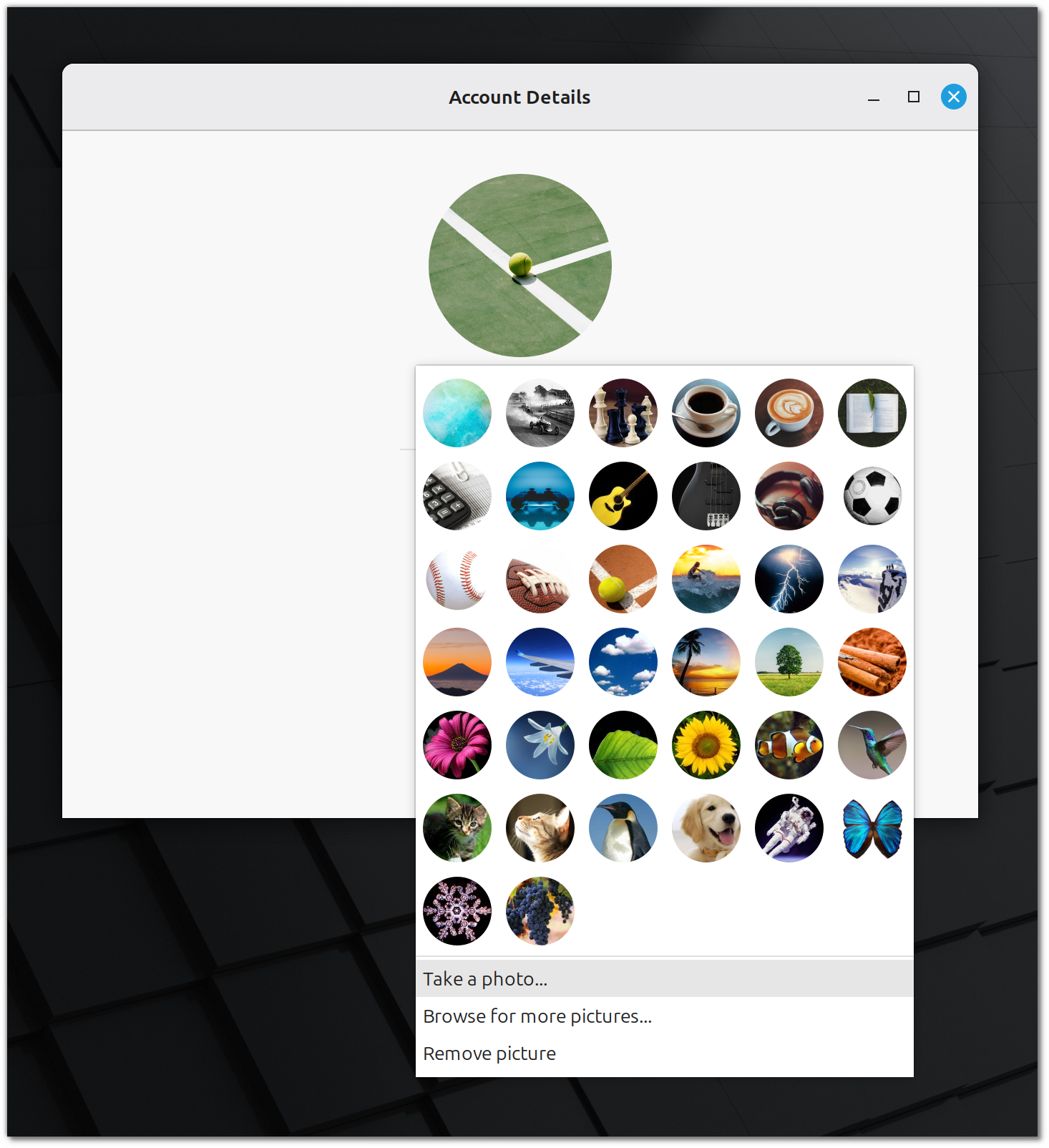
Account pictures look sharp on HiDPI displays.
System Administration has a new Environment Variables page where you can set variables system-wide.
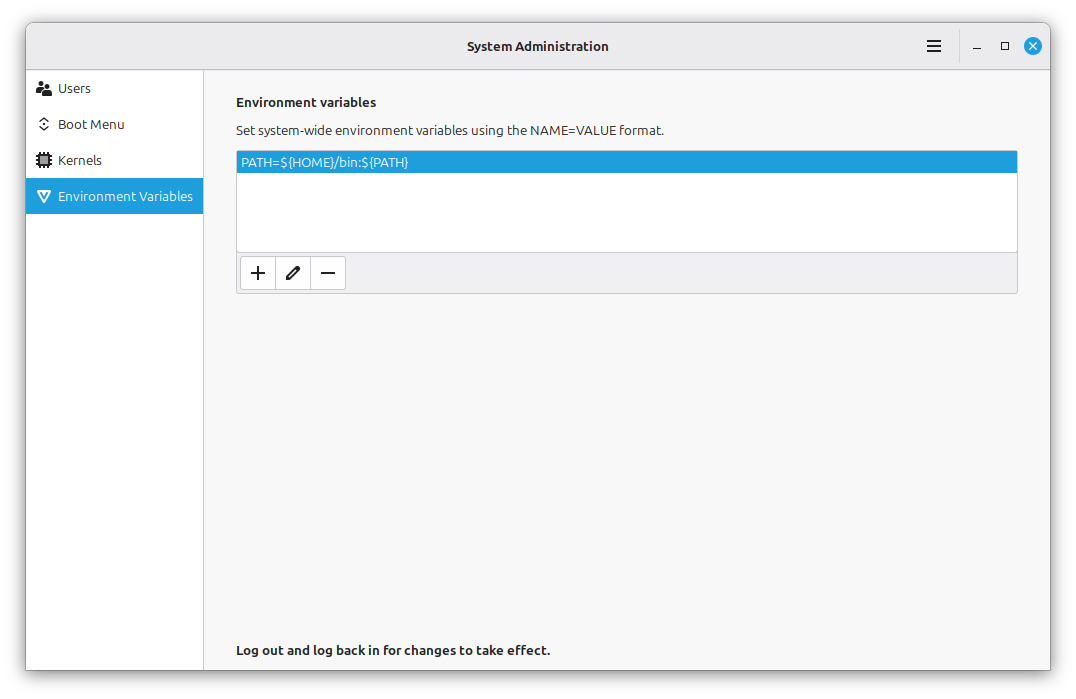
Variables you set here apply to all users in both graphical and console sessions.
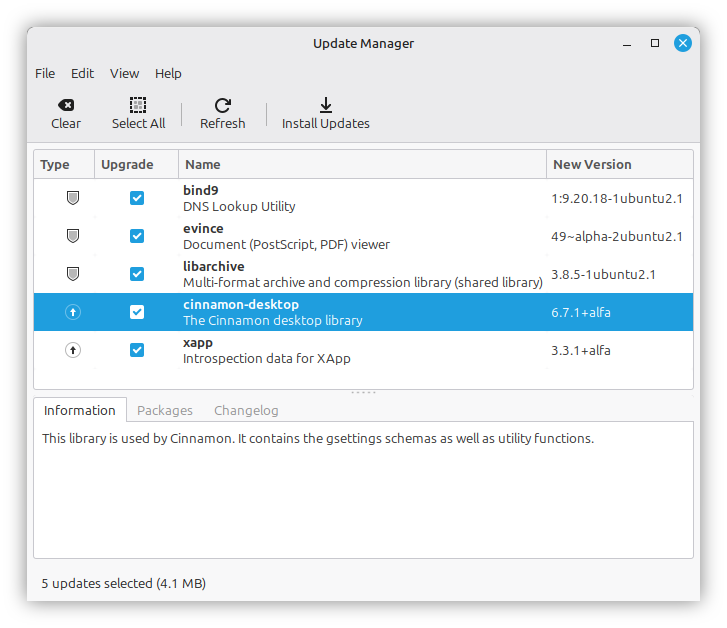
Kernel management was removed from the Update Manager and re-implemented within the System Administration tool.
This new implementation supports both Linux Mint and LMDE. It focuses on kernel series rather than individual kernels.
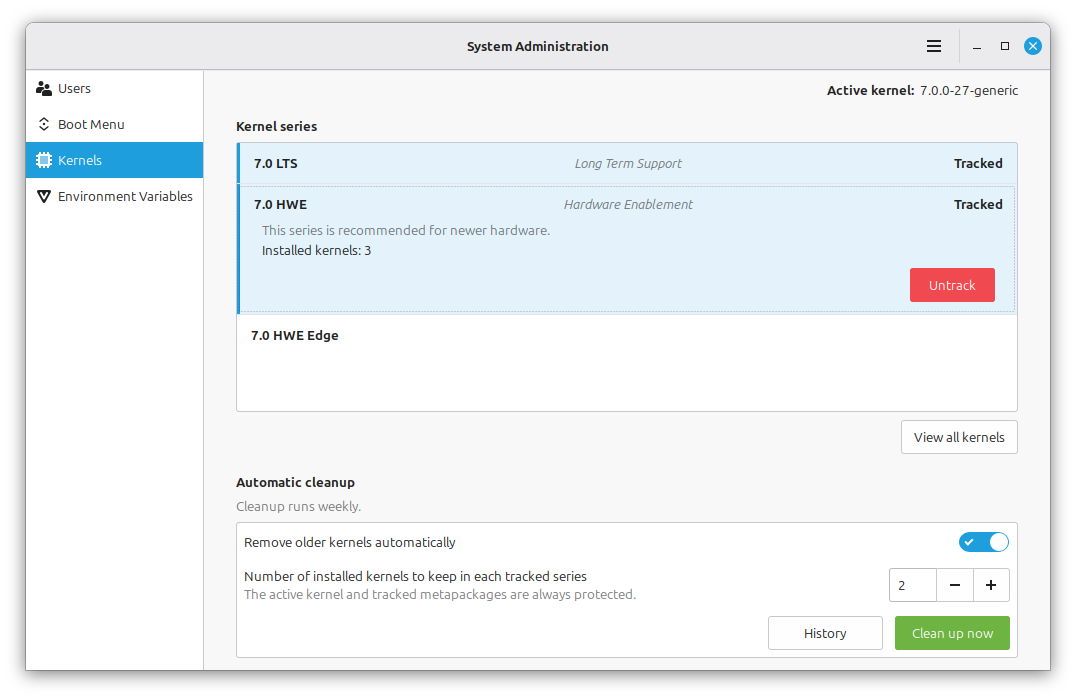
Kernel management is very simple: You decide which series you want to track and how many older kernels you want to keep. You then receive kernel updates for your tracked series in the Update Manager, and older kernels are automatically removed by the system on a weekly basis.
If you need to free up space immediately, cleanups can be triggered manually.
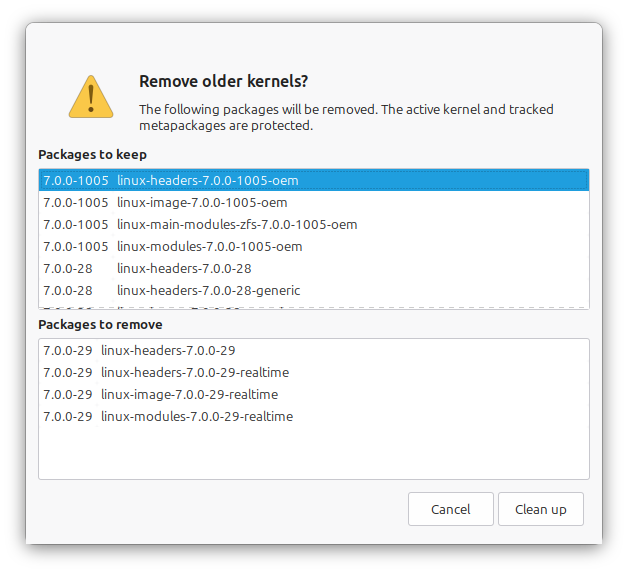
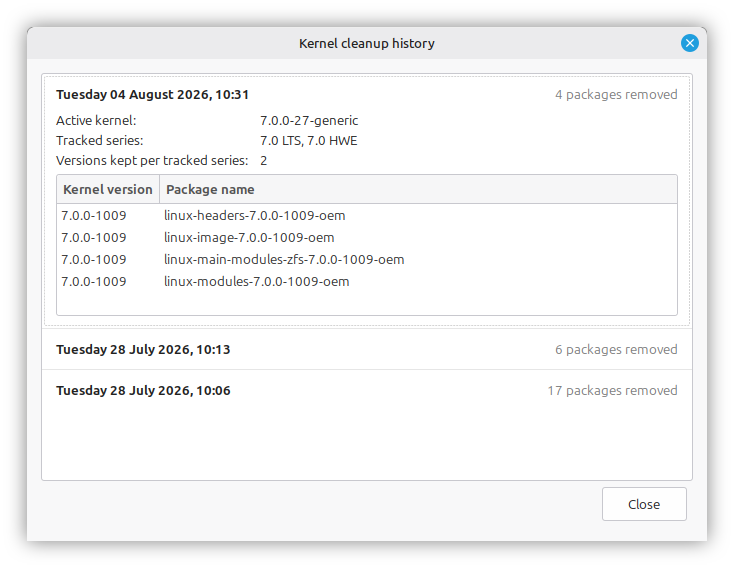
You can also click on the History button to see which kernels were removed and when.
If you install a kernel from an unknown or custom series, the tool will list its series and give you the ability to mark it as tracked.
In the screenshot below, we installed an OEM and a Real Time kernel.
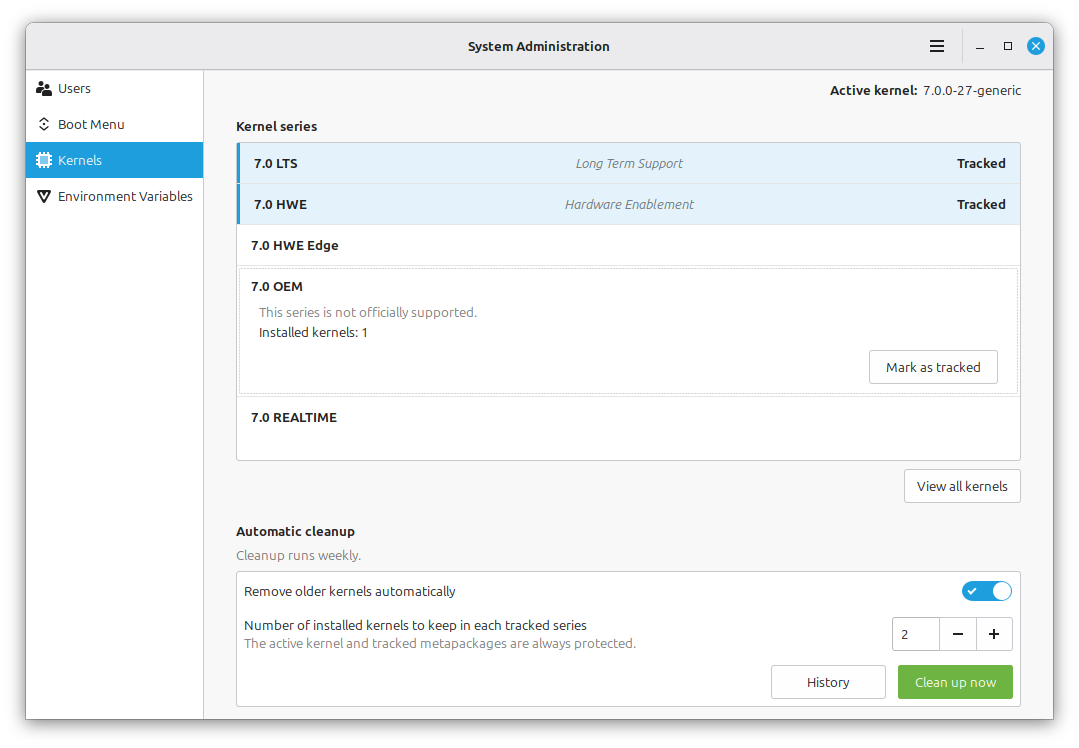
When you track a known series, the tool installs its meta-packages and ensures you receive updates for that series. In the case of a custom series, the tool doesn’t know how to do that and warns you that it is your responsibility to do so.
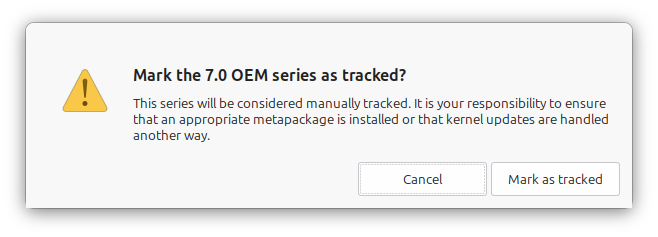
If a series is not tracked, all of its installed kernels get automatically removed during the next cleanup. Unless… you protect them.
You can click the “View all kernels” button to install, remove, or protect individual kernels.
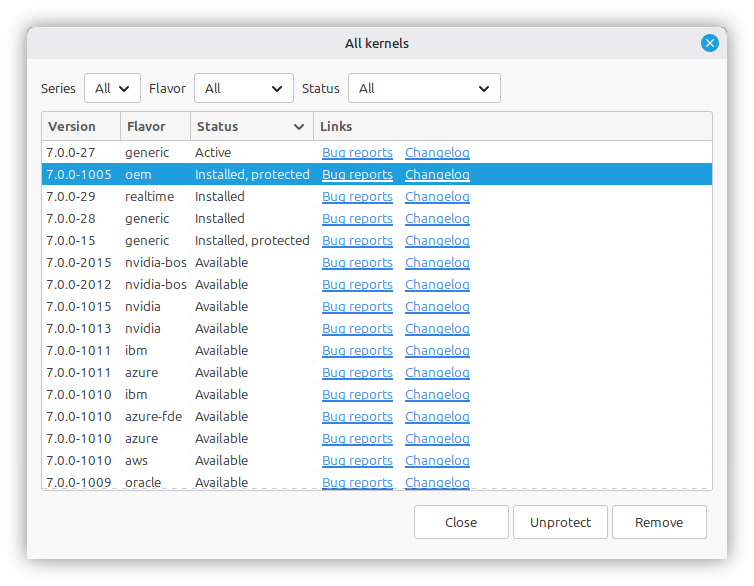
When a kernel is marked as “protected”, it becomes immune to kernel cleanups and never gets deleted.
When you close the lid of your laptop, it goes into a sleep mode called “Suspend”. This mode is very useful. It’s well supported, fast and reliable, but it has a major limitation: It uses power.
A good laptop with a full battery can sleep for 2 or 3 days, but eventually the battery runs out. When it does, the outcome is worse than a normal shutdown. The session is gone, and the battery is empty.
Unfortunately, this happens often because the typical use case for Suspend is that you’re done using the laptop and you want to go and do something else. Closing the lid is fast. Looking for the power cable isn’t. And the computer looks like it’s OFF, so you might not even think about it.
This is where “Hibernation” comes into play. Hibernation saves the session to disk and completely shuts down the computer. No power is used. When you reopen the lid, the session is as it was and so is the battery.
Unlike Suspend, though, Hibernation is slow. It can take longer than a reboot to hibernate and resume the computer.
Hibernation is also hard to set up. It doesn’t work out of the box and requires a large amount of swap space on disk. Ubuntu actually decided to remove it from the available sleep modes, so it was usually not available in Linux Mint.
We brought it back.
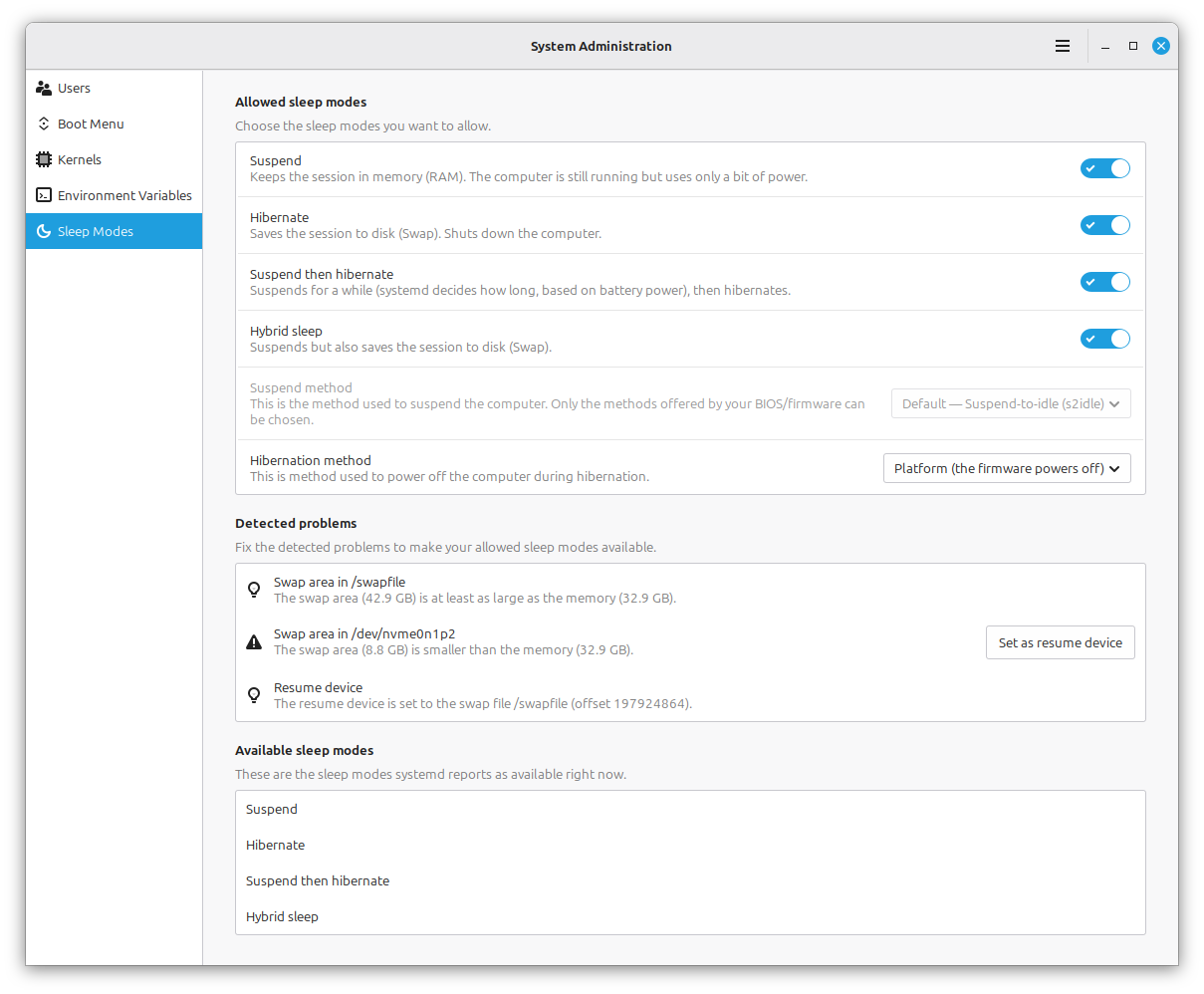
There's a new page in System Administration dedicated to Sleep Modes.
This page makes it easy to enable Hibernation and to set it up correctly.
The page also lets you enable Hybrid Sleep and Suspend-then-Hibernate.
Hybrid Sleep suspends the computer but also saves the session to disk. If the battery runs out, you need to find the power cable, but you can resume the session.
As the name suggests, Suspend-then-Hibernate suspends the computer but when the battery level goes critical, it hibernates it.
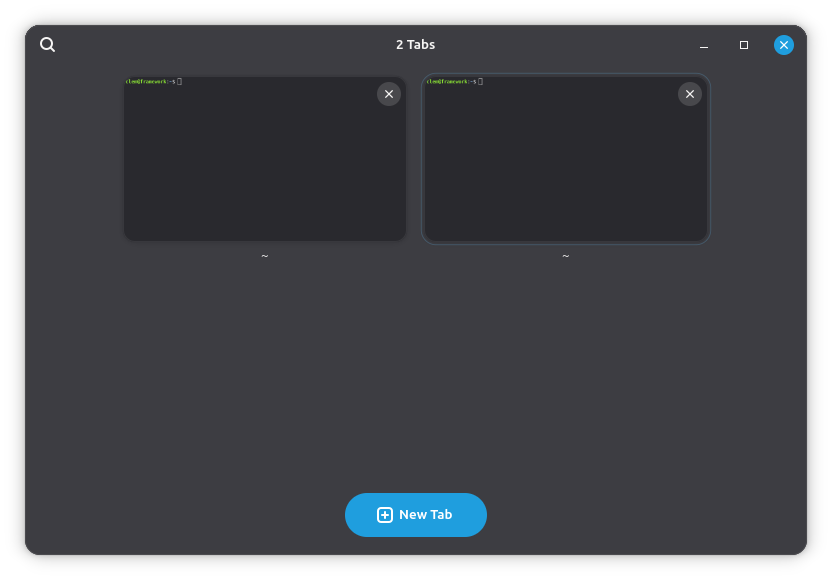
Velocitty is a new terminal. It’s really simple to use and packed with great features.
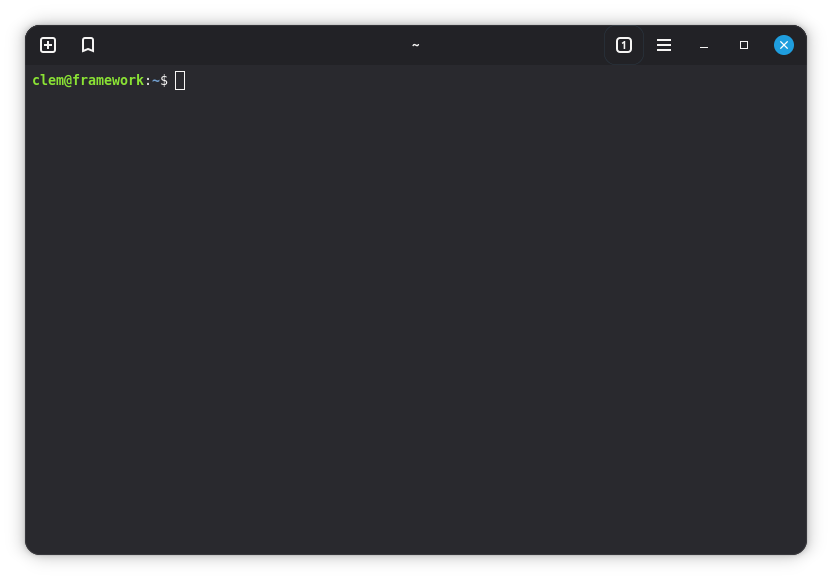
Like Ghostty and Ptyxis, it comes with a tab overview.
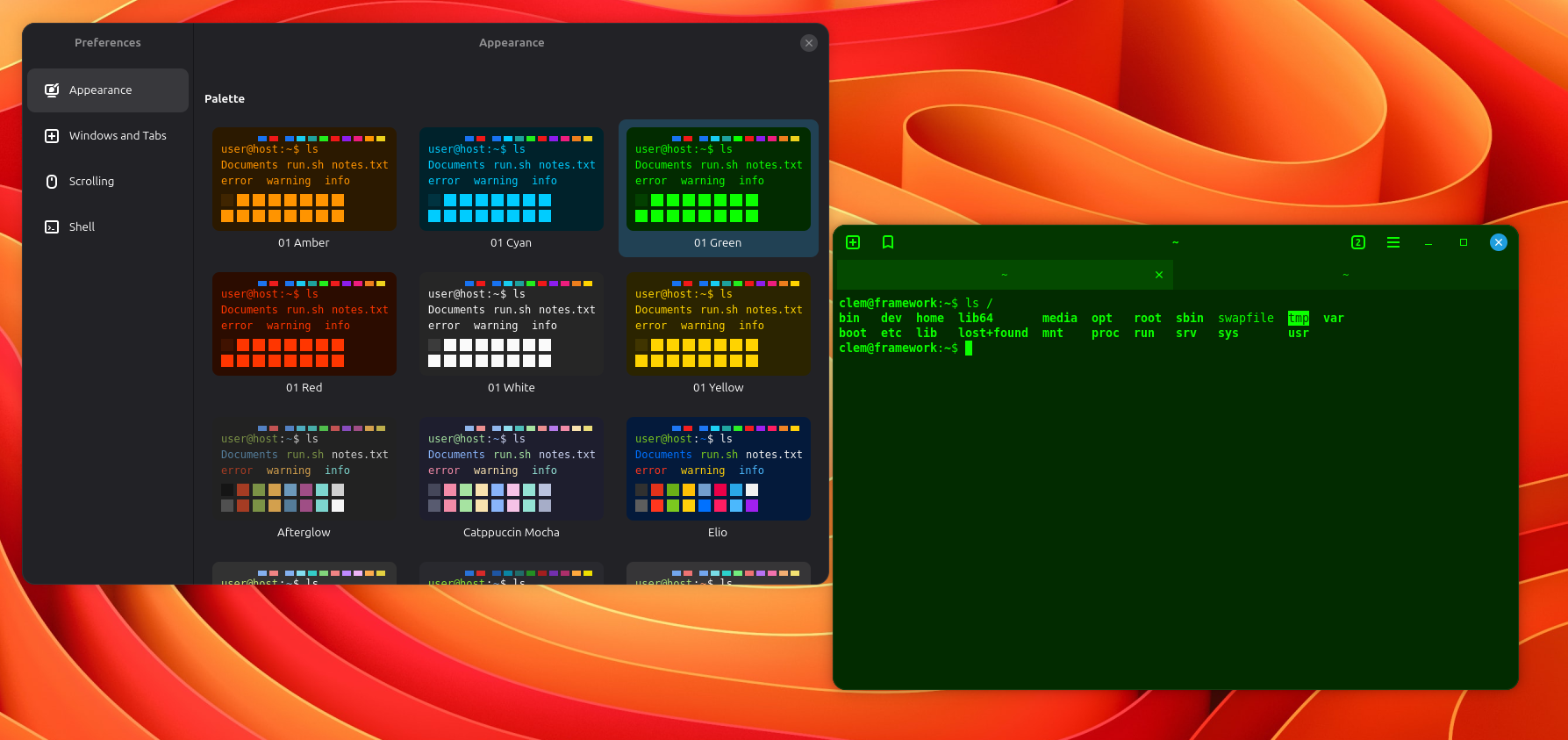
You can change the way it looks with color palettes.
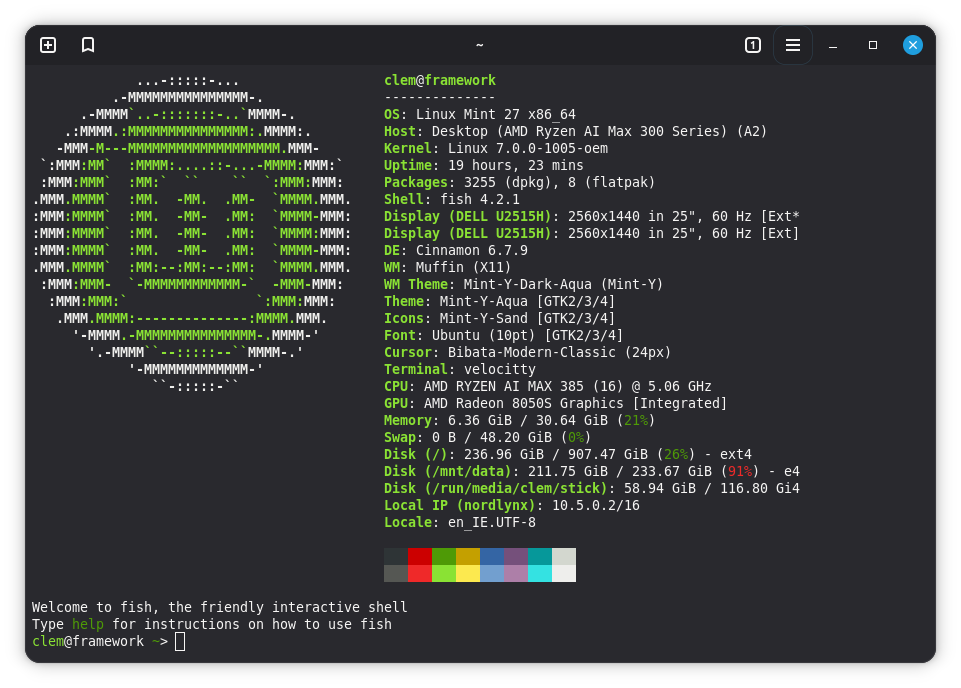
In the preferences, you can select which shell to use (bash, zsh, dash, fish, etc.) and specify a command to be executed at startup. The example below uses fish and runs fastfetch.
Tabs can be reordered, dragged between terminals or detached into a new window.
Paths can be shortened in the preferences. For instance, here’s /var/lib/dpkg/info shortened to just info in the tab name and …/lib/dpkg/info in the prompt.
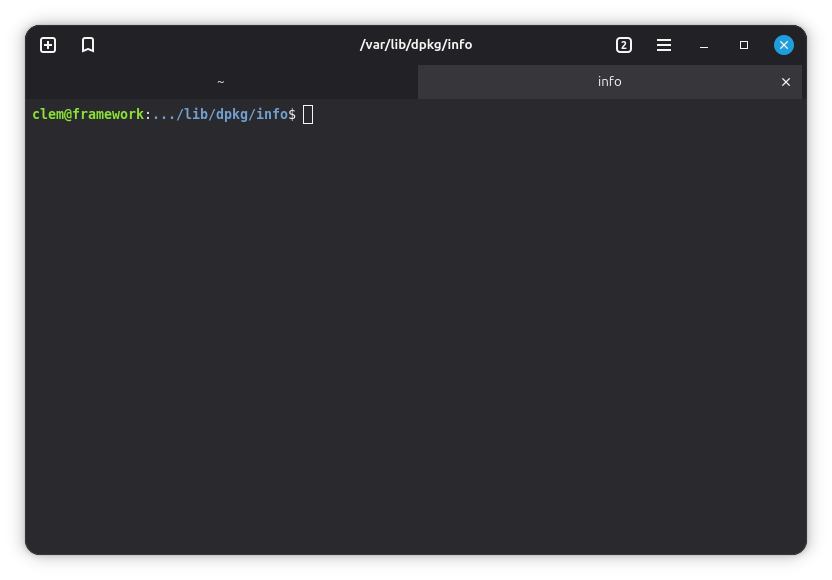
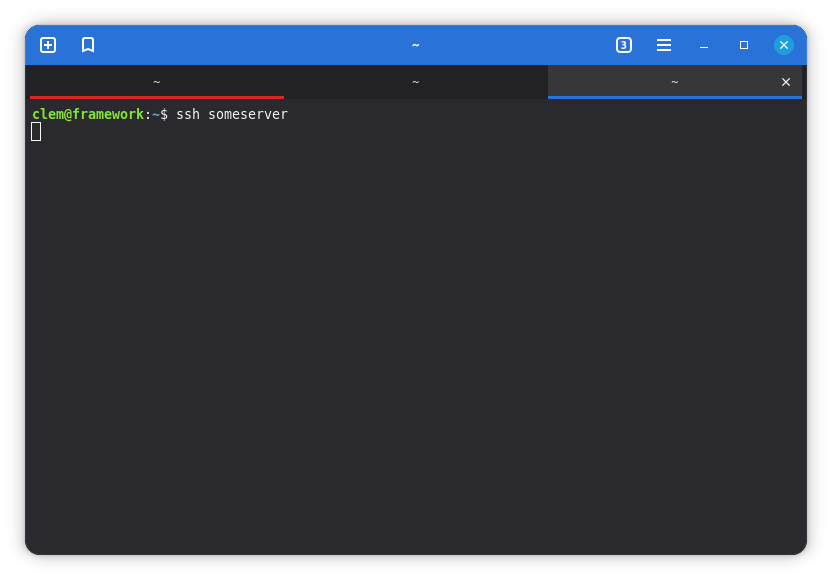
Tab colors show what’s happening in each session. Red indicates superuser activity, blue indicates a remote session, and a lighter shade indicates a running process.
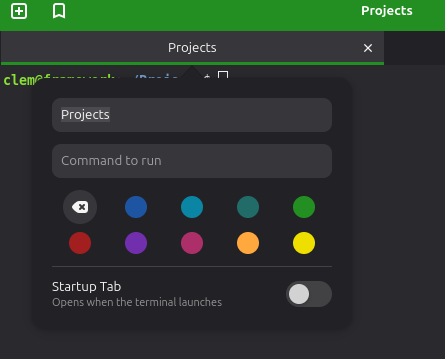
Tabs can be customized. You can give them a name, a color, a command to run and decide if you want them to automatically open when you launch Velocitty.
Click the bookmark icon to see your custom tabs and choose which one to open.
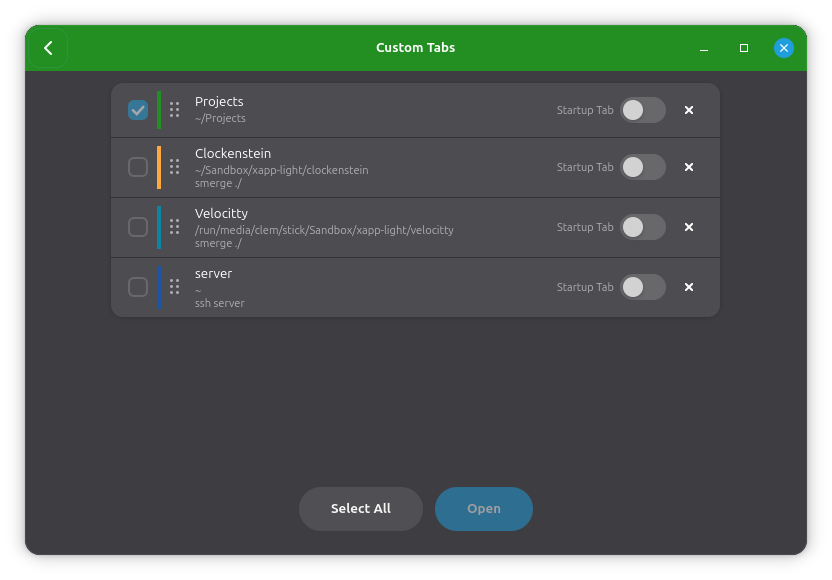
Whatever you’re working on, your projects and SSH sessions are always really easy to access.
Superlight is a new system monitor.
It graphs CPU, memory, swap and GPU usage, along with network activity, disk I/O, temperatures and fan speeds.
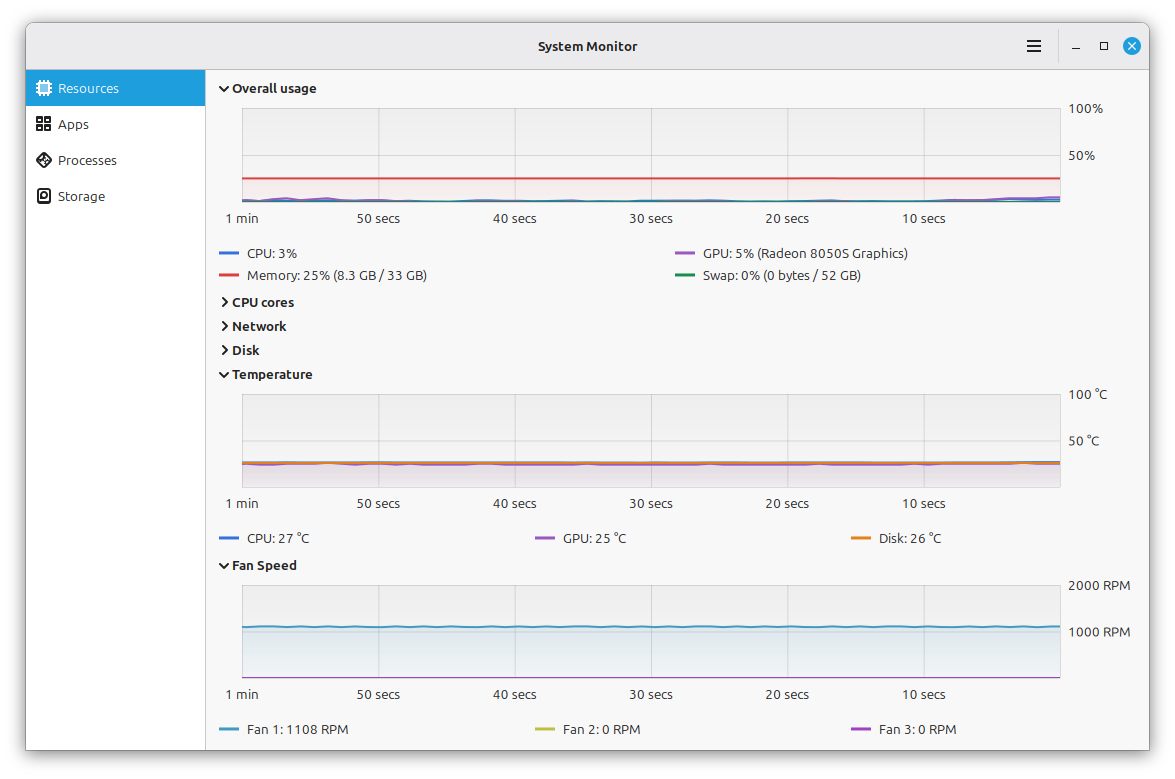
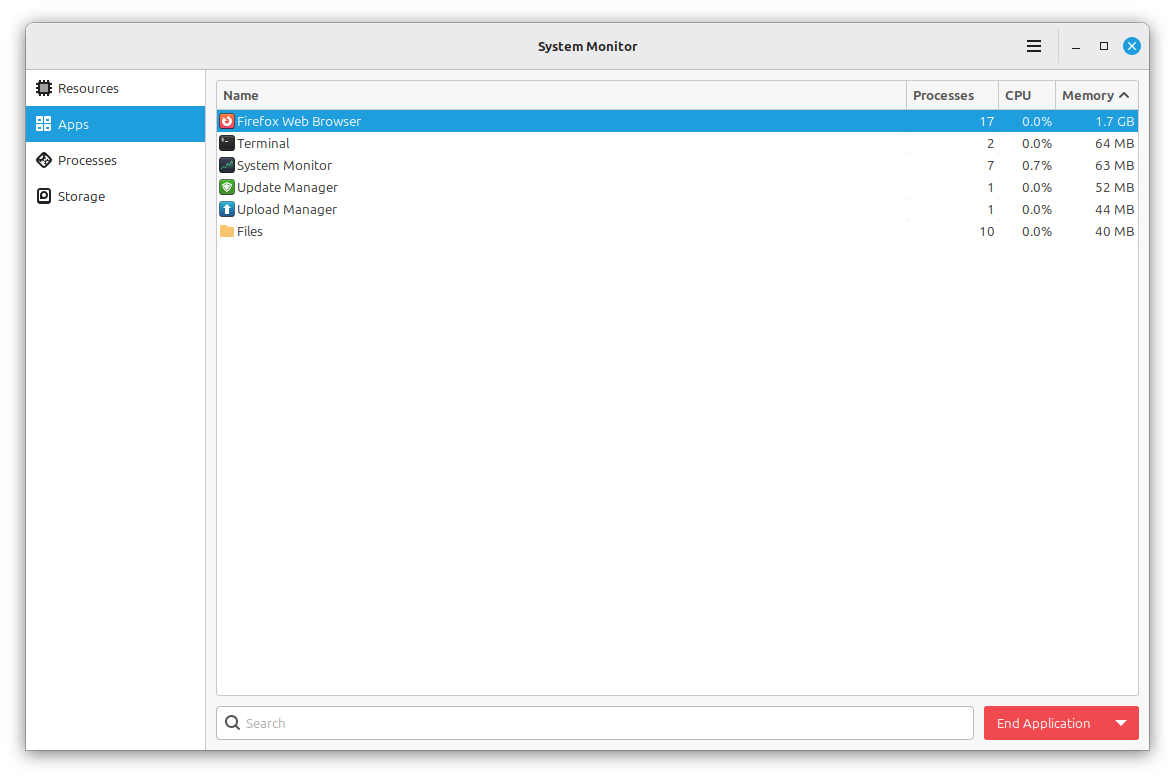
The application view shows what’s running and how much of the system’s resources each app is using.
The process view shows resource usage for each running process.
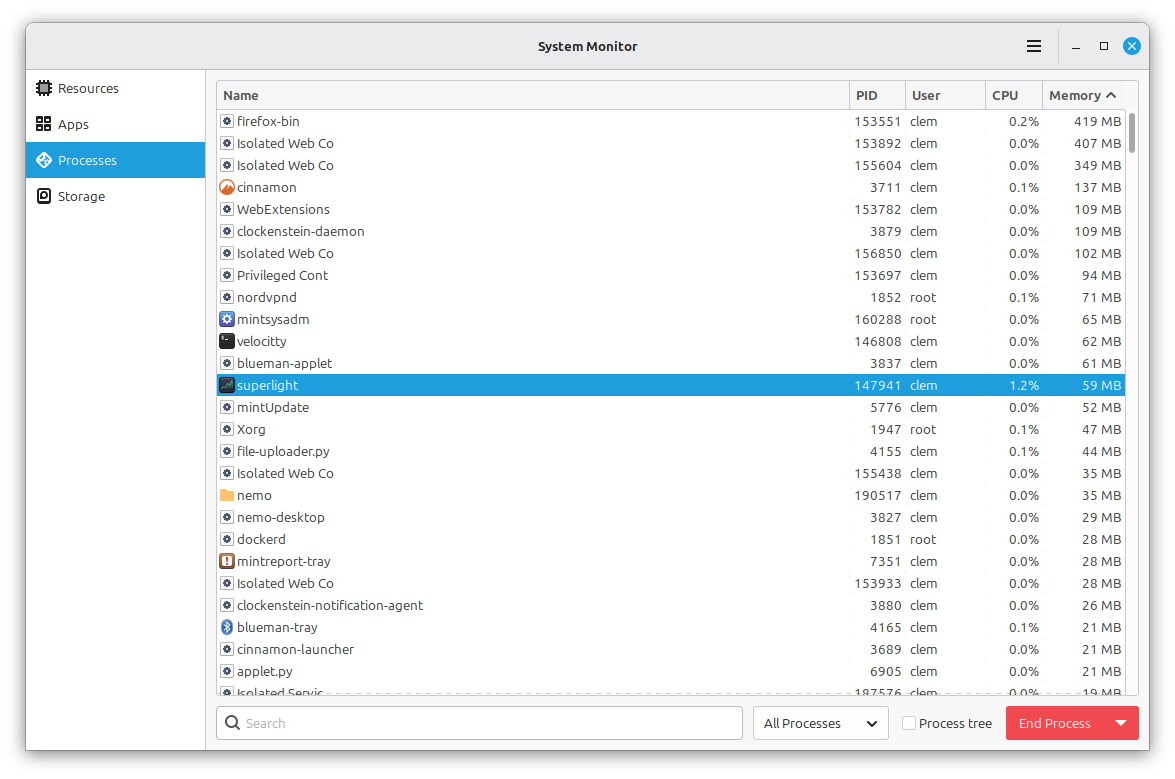
You can choose which columns to show, rearrange them and sort the list by any column. Superlight remembers your choices.
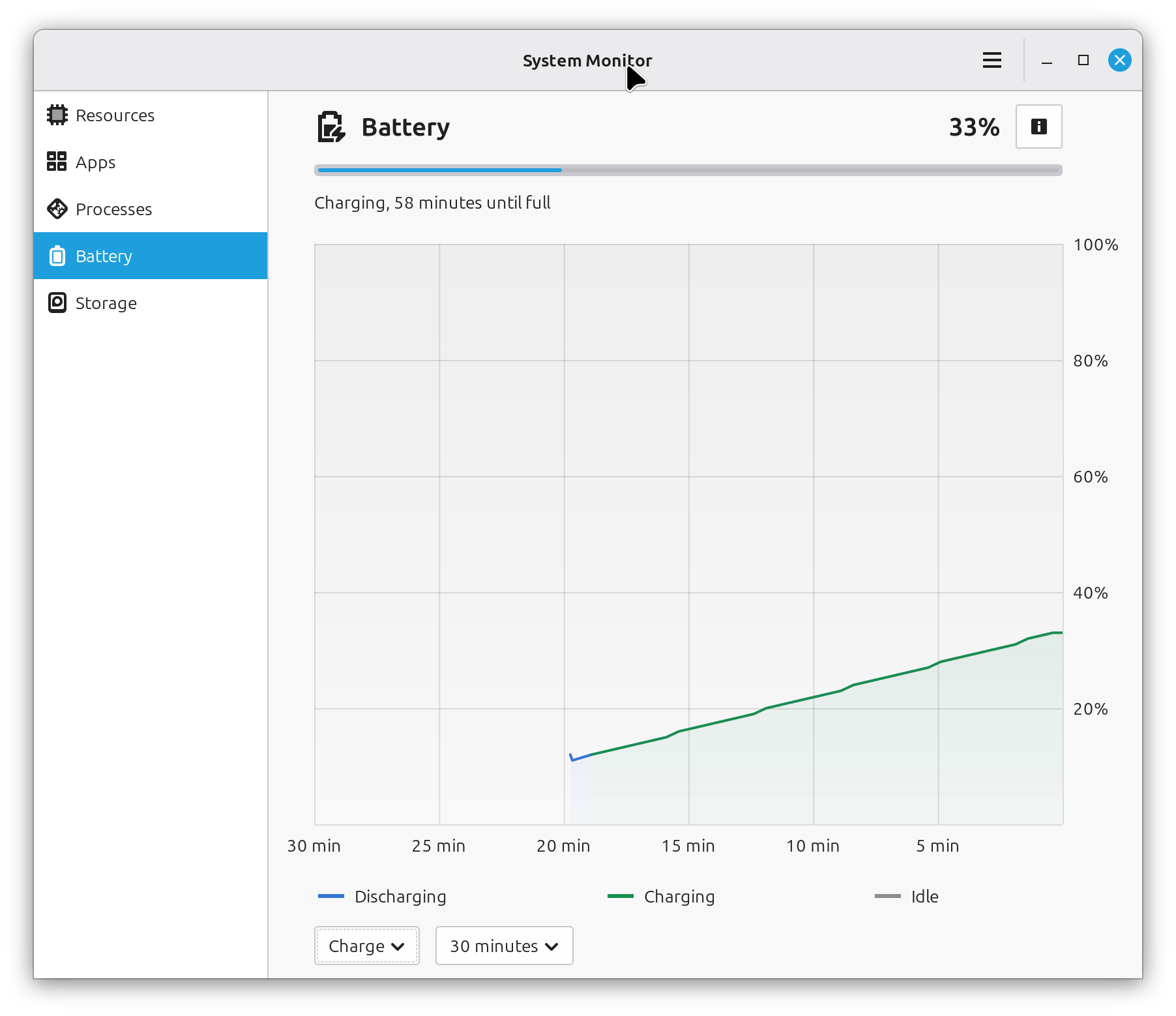
On computers with a battery, you can see its current status and track its charge level and power draw or charging rate over time.
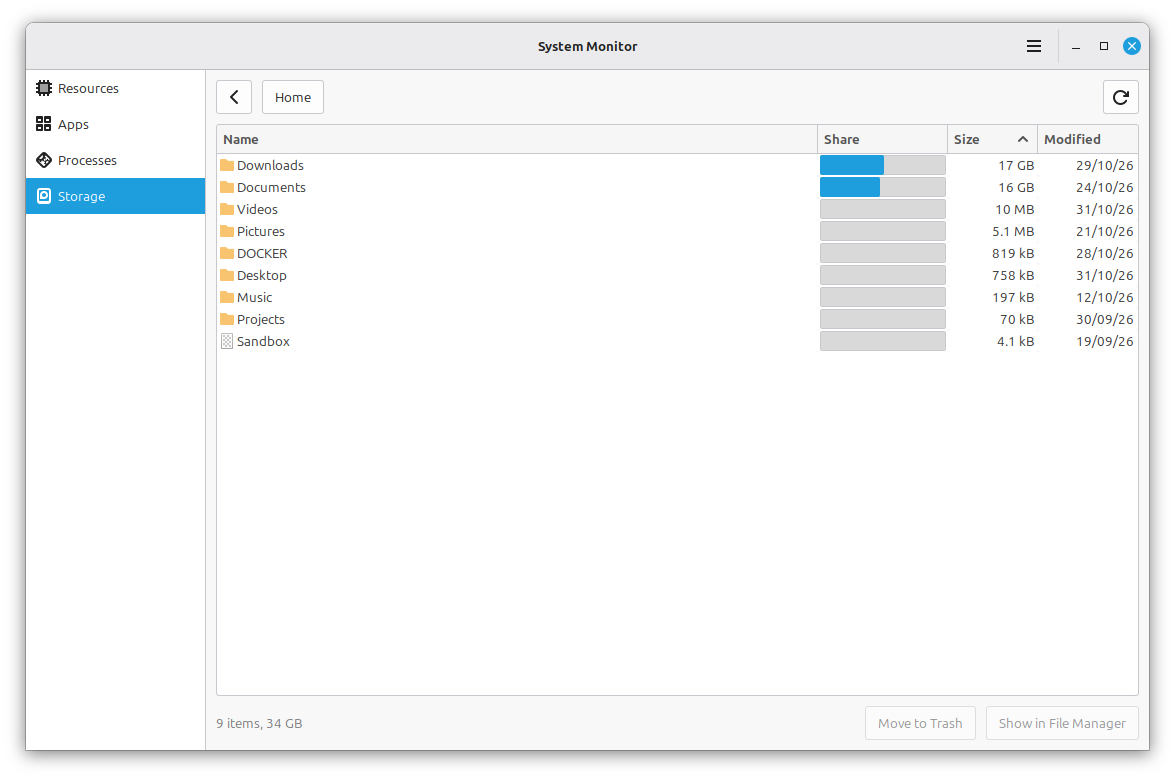
The Storage page shows how much disk space you’re using and what’s taking it up.
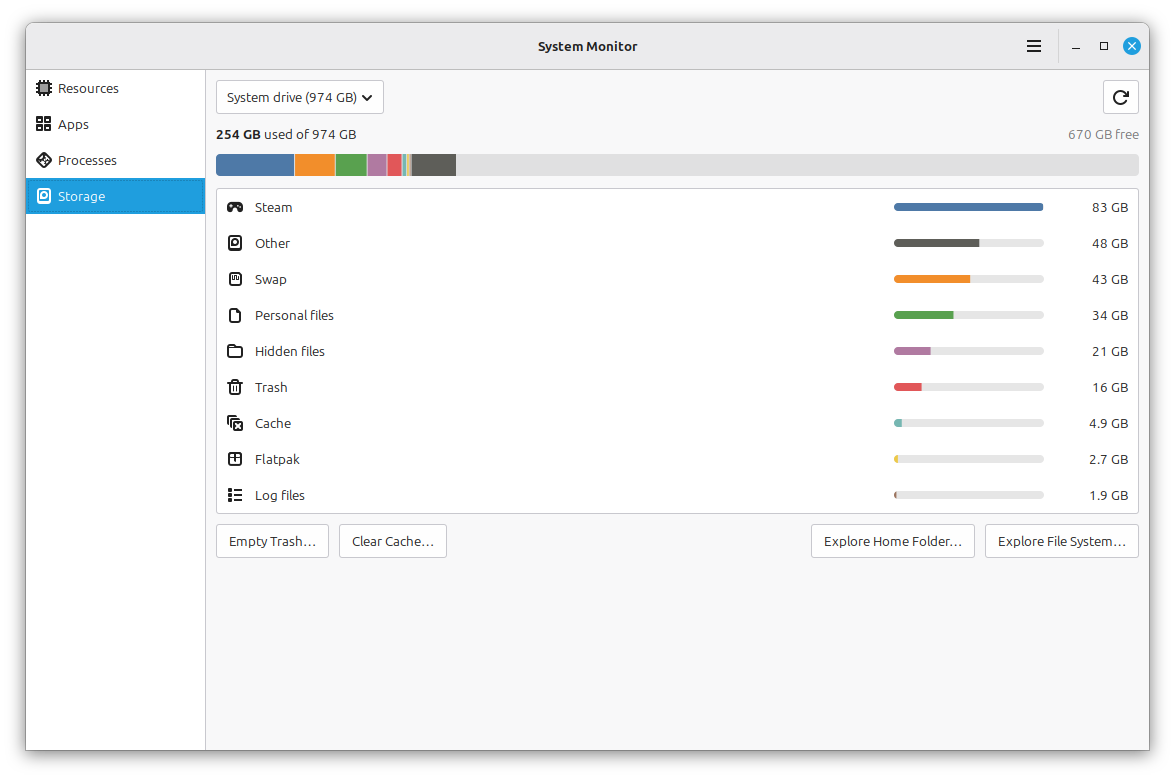
Open Files to see which folders and files take up the most space.
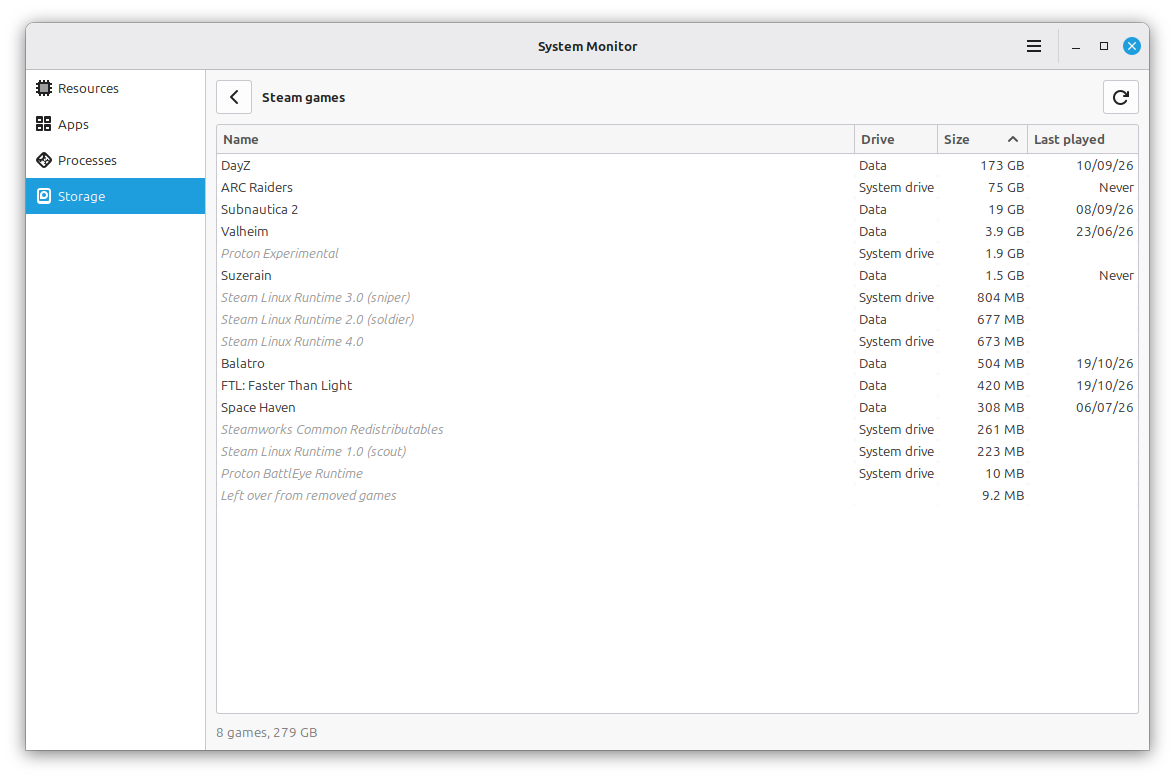
The Steam view shows how much disk space each game uses.
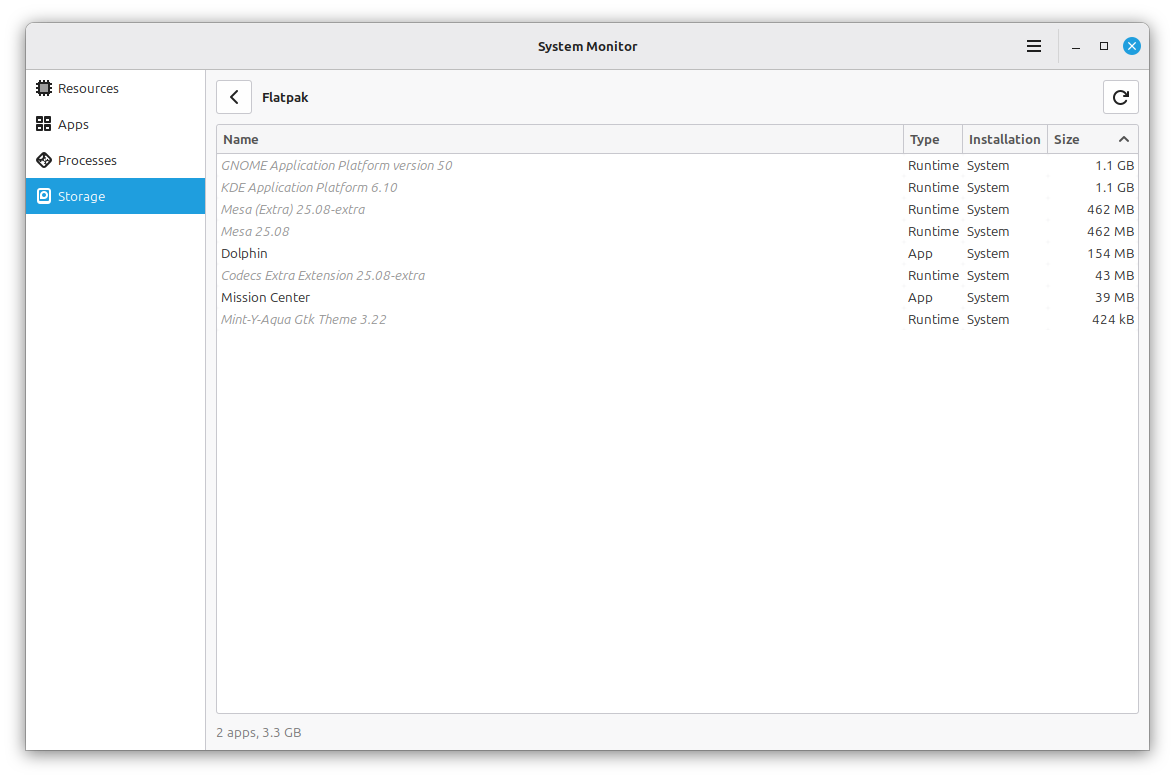
The Flatpak view shows how much space Flatpaks use.
Superlight makes it easy to see what’s taking up resources on your computer.
Unfold is a lightweight archive manager designed to be as simple and easy to use as possible.
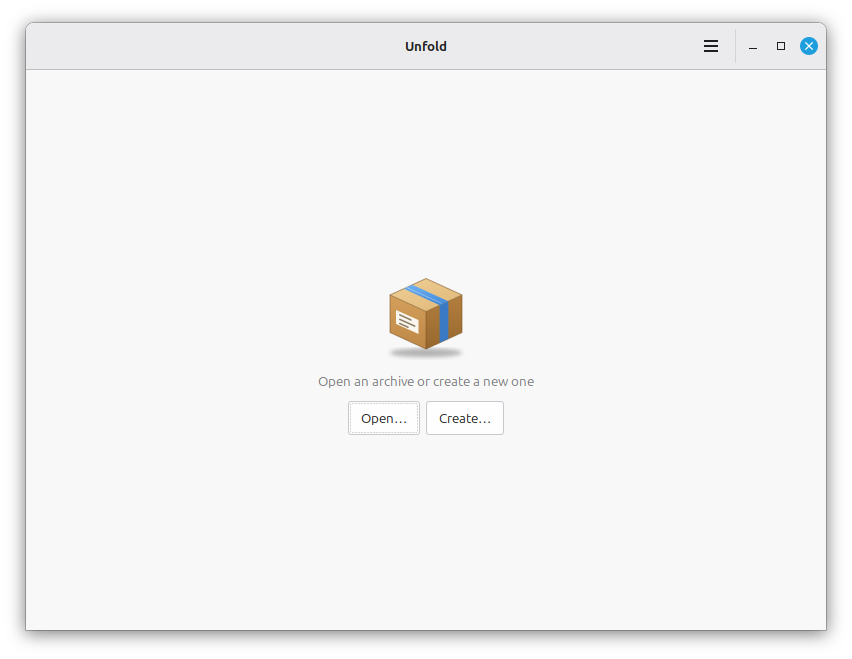
You can use it to open, create and extract archives.
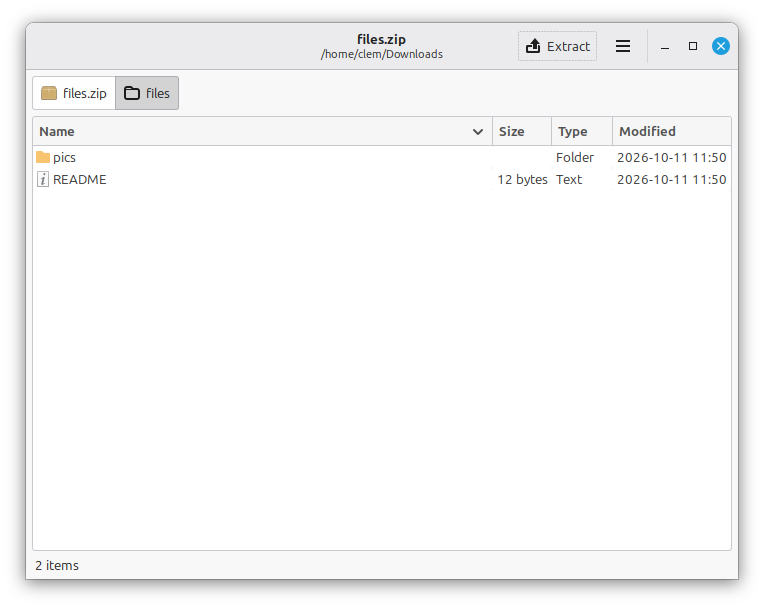
It uses 7-Zip with RAR support and can open password-protected archives in supported formats.
Xepub is a new app for reading ebooks in EPUB format. It appears as “Book Reader” in the desktop menu and feels familiar if you’ve used a Kindle or a Kobo.
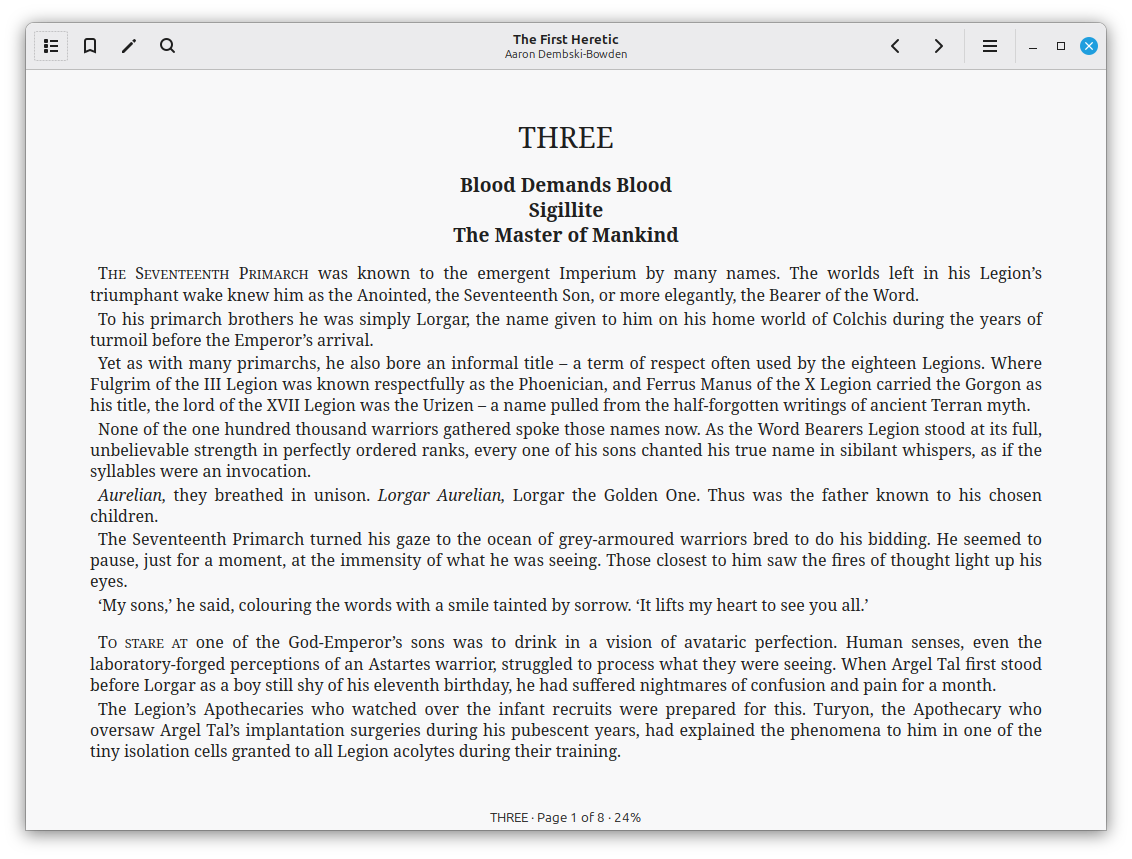
You can jump between chapters, search the book and bookmark pages you want to return to.
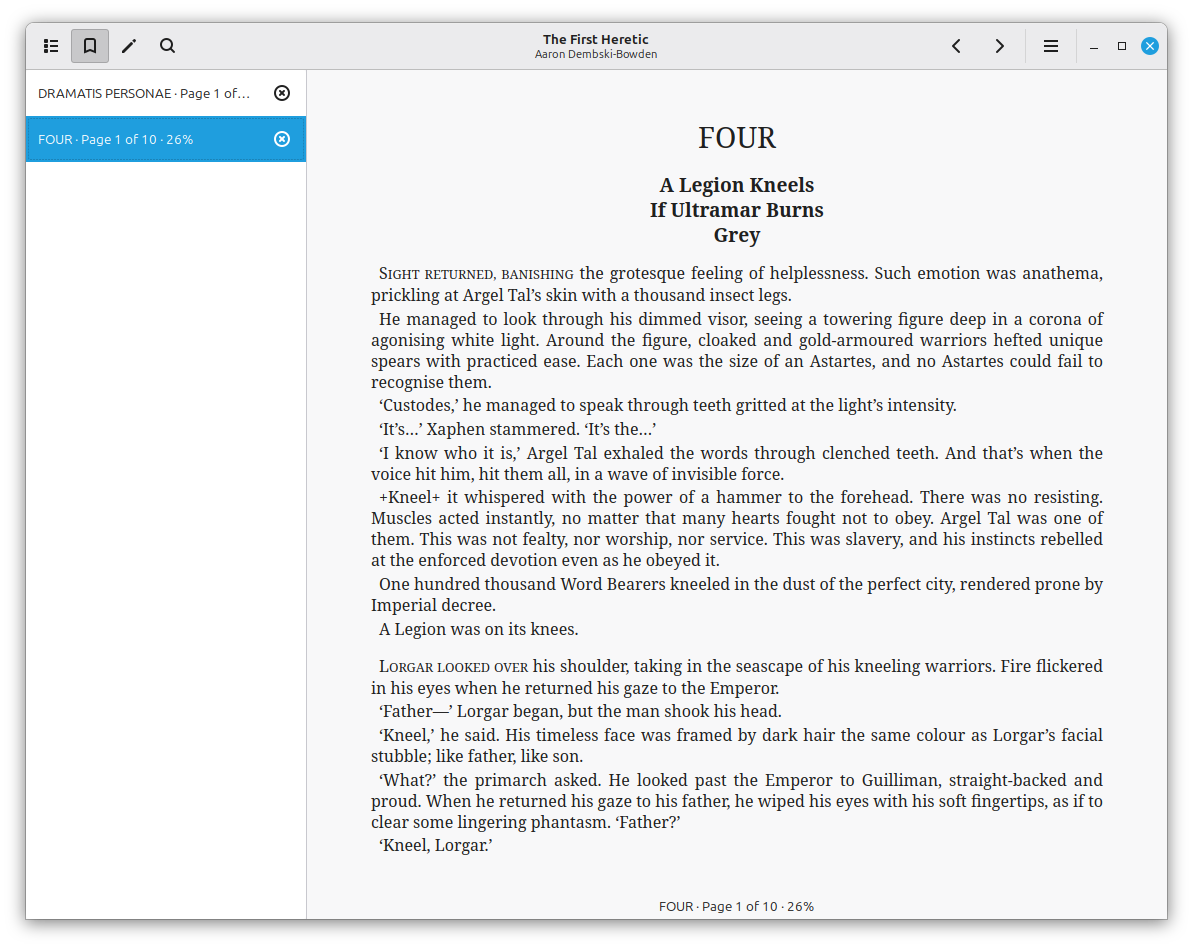
When you reopen a book, Xepub remembers where you were, so you can simply continue reading.
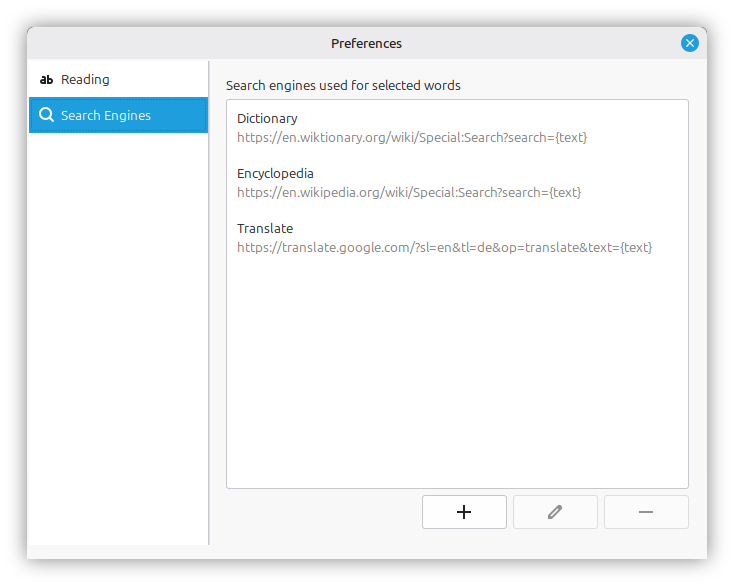
Select a word to look it up in a dictionary, search for it on Wikipedia or translate it.
In Preferences, you can change the addresses for these lookups or add your own.
Select a passage to highlight it, choose a color and add a note.
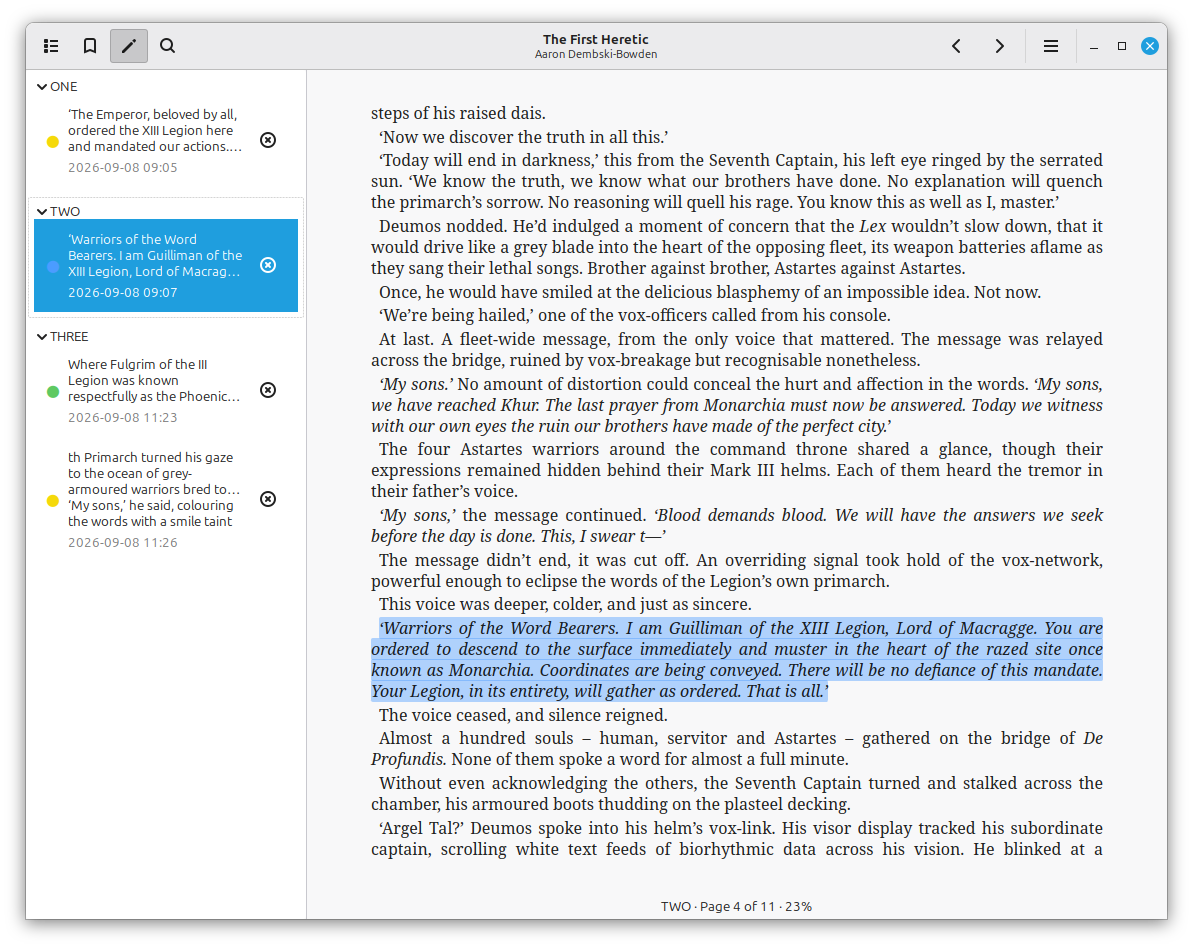
You can adjust the zoom level and choose your preferred fonts to customize the reading experience to your liking.
Thingy, which appears as “Library” in the desktop menu, has been redesigned.
The Library gives you a quick way to get to recent documents and favorites without browsing through folders. You can find files by type or organize them into your own groups.
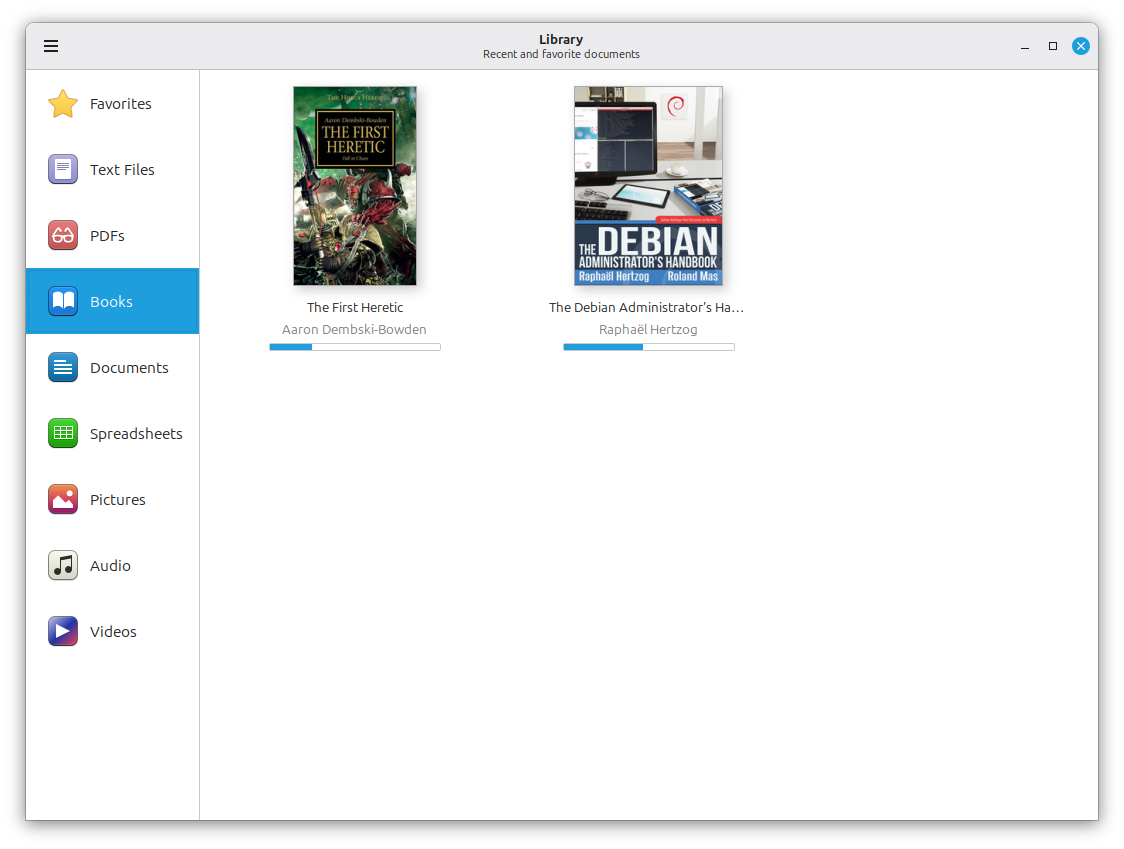
The sidebar includes groups for common document types. You can choose which groups to show and in what order.
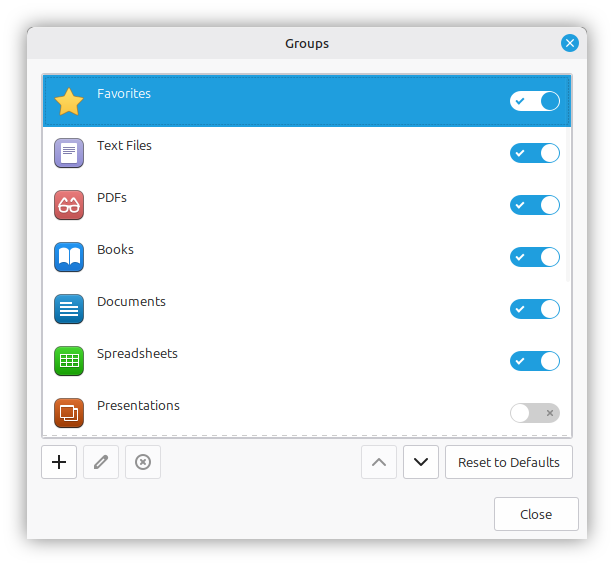
You can create your own groups and choose which file types and locations they include.
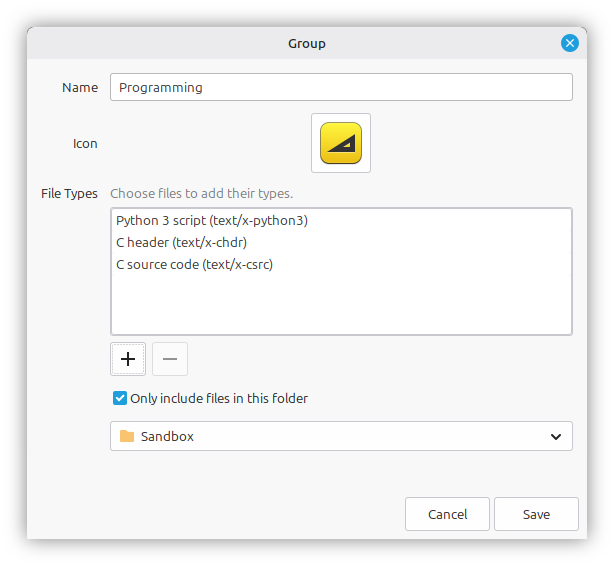
For example, you can group PDFs and spreadsheets from a single project folder.
You can remove individual entries from the library or clear the entire list of recent documents.
This is our biggest Cinnamon release yet. There are too many improvements to cover here, so we’ve picked a few highlights.
Wayland is now fully supported, with 3D acceleration, HiDPI and fractional scaling, keyboard layouts, input methods, touchpad and touchscreen gestures, etc.
We rewrote the screensaver from scratch. It’s now built into Cinnamon and works on both Wayland and X11.
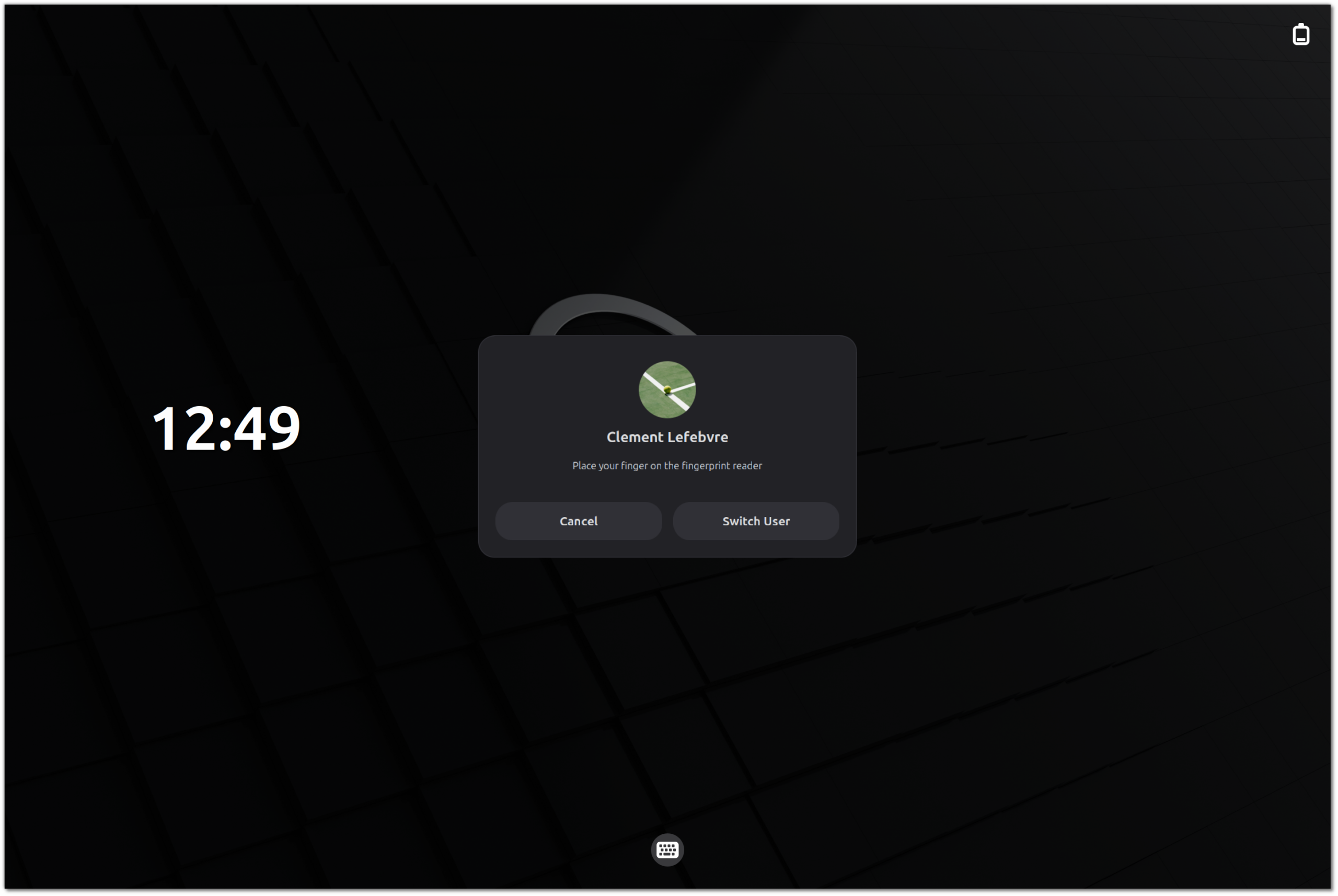
Cinnamon now locks the screen directly, using its own toolkit and widgets. The lock screen looks and feels like part of the desktop.
The first thing you’ll notice is how smoothly you move between the desktop and the lock screen. Cinnamon handles the transition directly and keeps your desktop covered until you unlock it.
Cinnamon already supported touchpad and touchscreen gestures, but without animation, and they only triggered actions when the gesture was completed.
With one-to-one gestures, the animation follows your fingers as you move. When you lift them, the action completes or cancels.
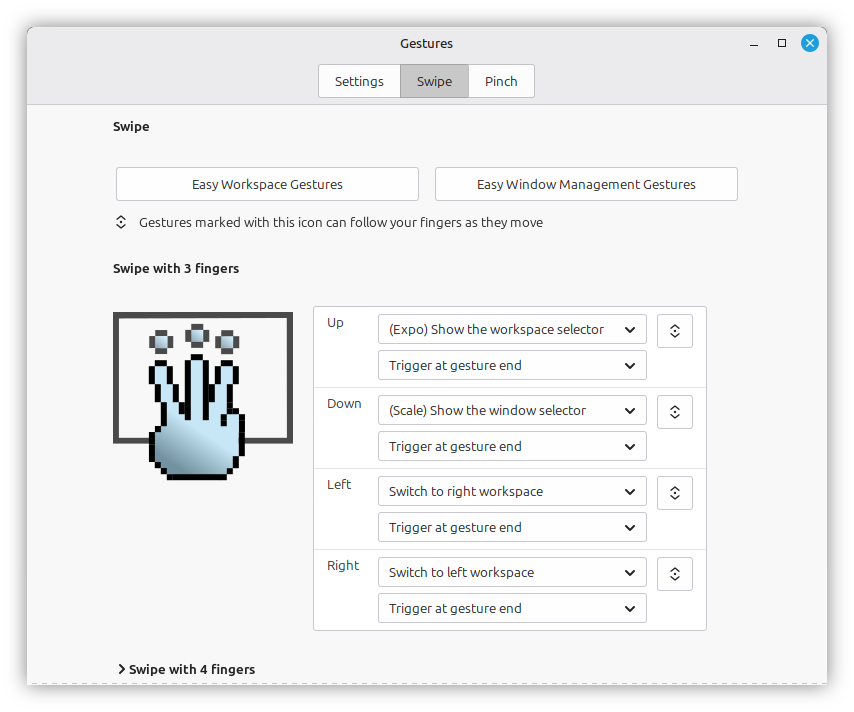
When you swipe to switch workspaces, for example, the next workspace slides into view as you swipe.
This makes gestures feel more responsive.
Nemo has a new preview pane.
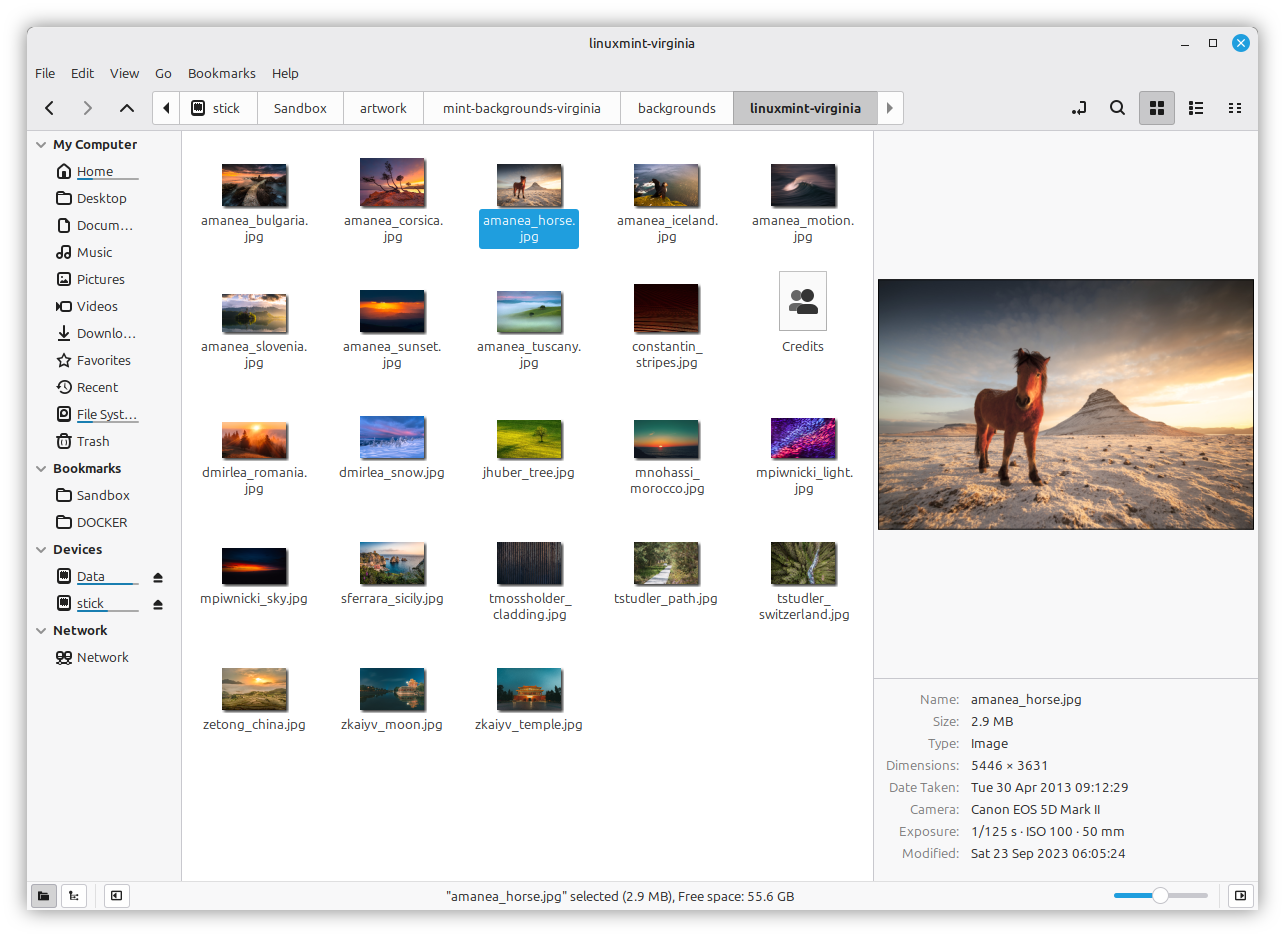
You can toggle it with F7 or by clicking the button in the status bar.
The preview pane supports audio, pictures and videos.
It also shows information about the selected media. For instance, in the screenshot above you can see when the picture was taken, and with which camera.
Navigation Speed
Nemo responds faster when you open a folder. In Cinnamon 6.6, Nemo waited at least 200 ms before showing a folder’s contents, even if they loaded sooner. That delay helped the view appear smoothly.
200 ms might not seem like much, and to be honest it never really bothered us before. But once you notice it, you cannot unsee it. Nemo now adjusts how it displays folders depending on how they load. Some folders open immediately, making navigation feel more responsive.
Interactive Search
Nemo supports something called Interactive Search. Open a directory and start typing to use this feature.
In Cinnamon 6.6, a little entry appeared in the bottom-right corner to show what you typed and the view jumped to the first result which matched your query. You could then use the arrow keys to jump from one result to the next.
This feature is convenient but its implementation didn’t make it obvious or comfortable. Nemo now uses a filtered view instead.
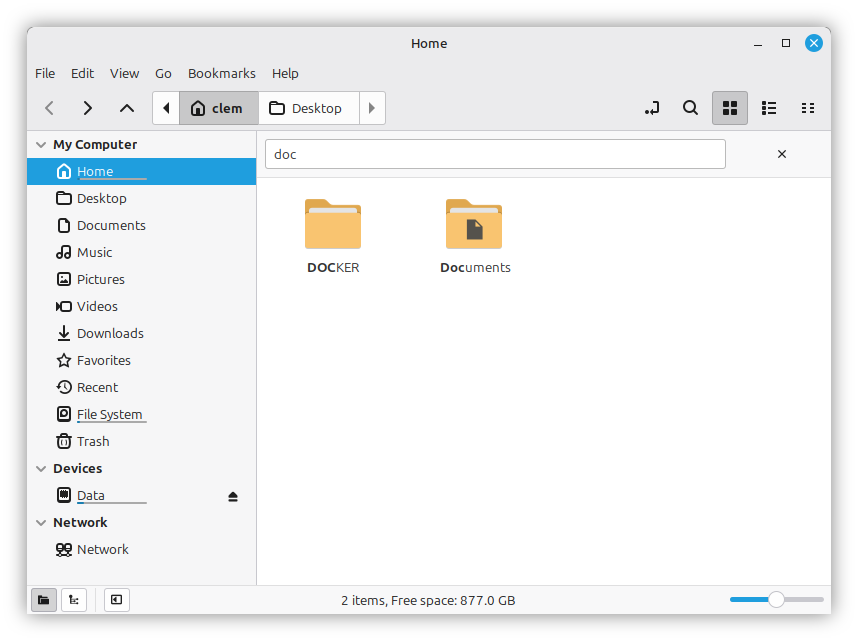
As you type, your search appears in a search bar that stays visible when you stop typing or click away.
The view gets filtered to only show results so you can see them all at once and no longer need to jump without knowing where you’re going to land.
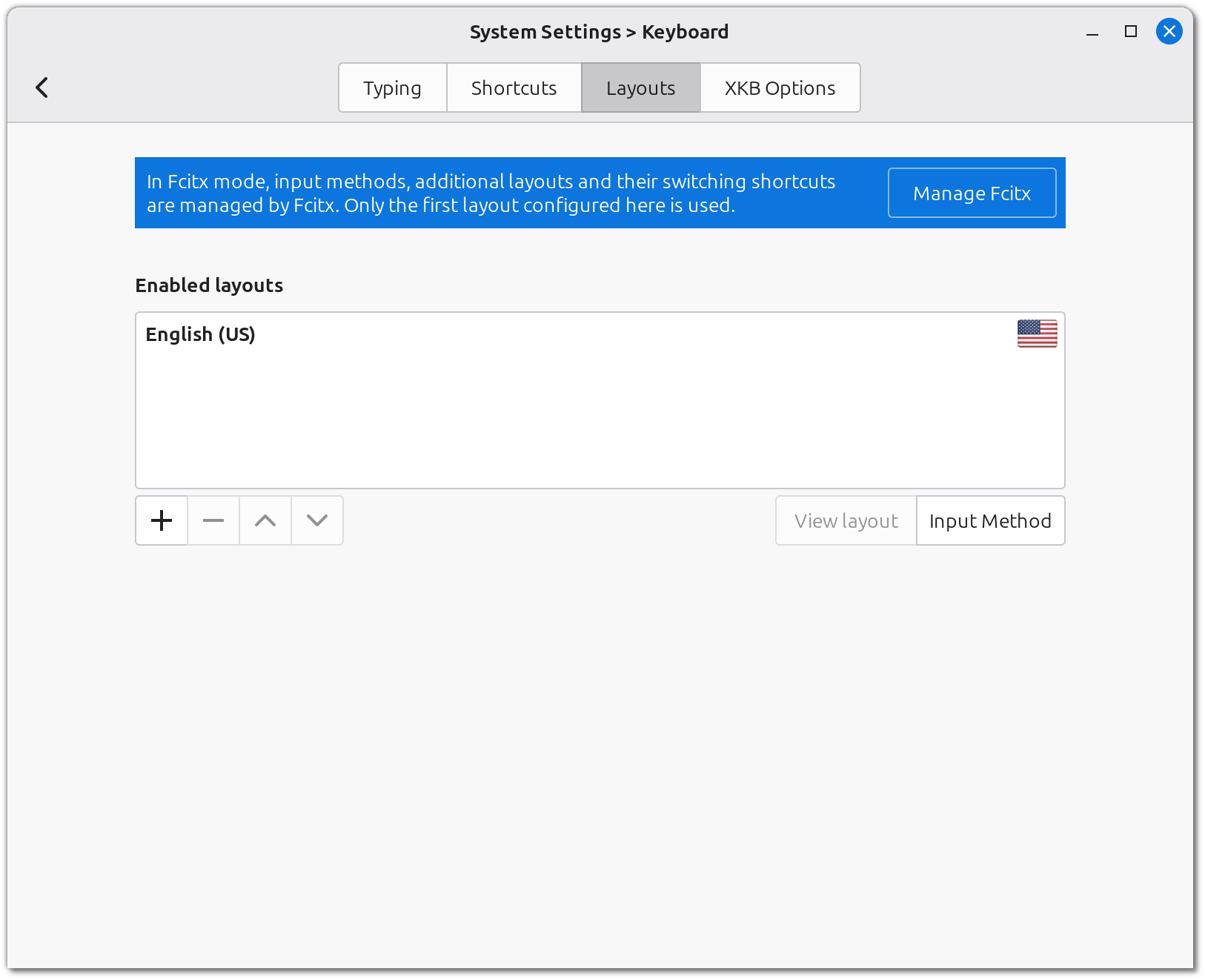
IBus input sources now support a default XKB layout.
In addition to IBus, Cinnamon now also supports Fcitx5.
When you select Fcitx5 in Input Methods, Cinnamon no longer launches ibus-daemon. It uses a different internal handler instead. It lets you define a single layout and delegates everything else to Fcitx.
Cinnamon also features a new keyboard layout viewer.
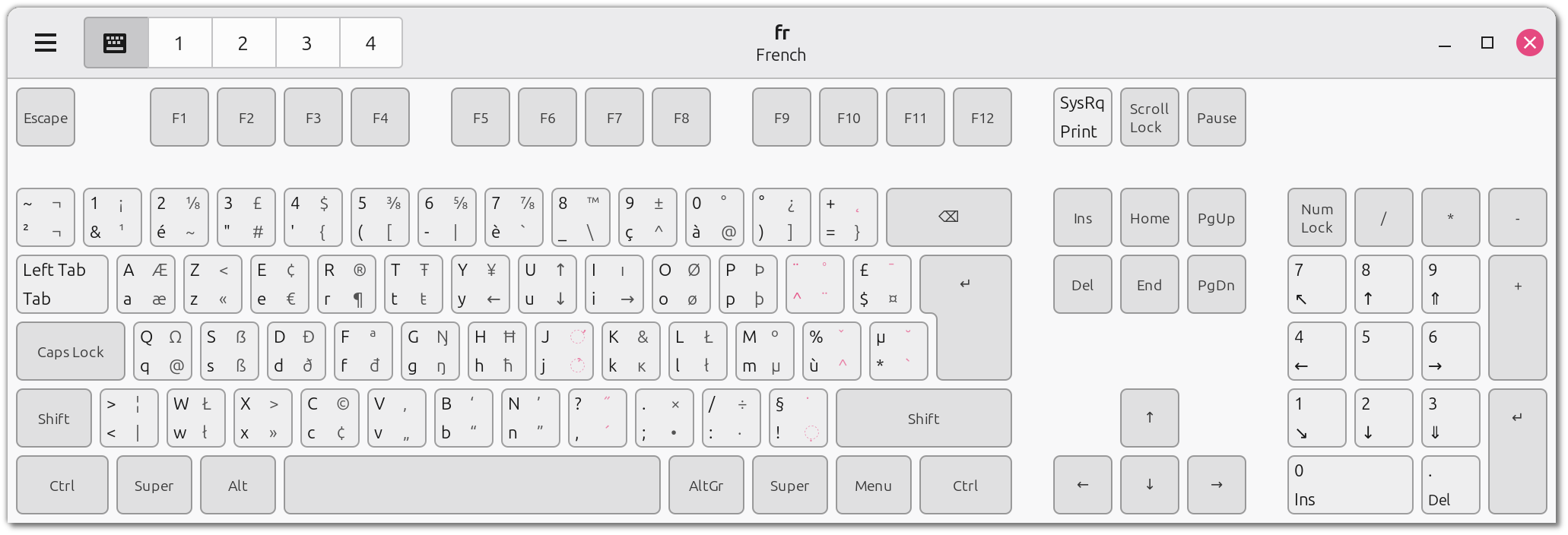
This viewer replaces the gnome-kbd viewer, which was discontinued.
A new screenshot tool was written for Cinnamon.
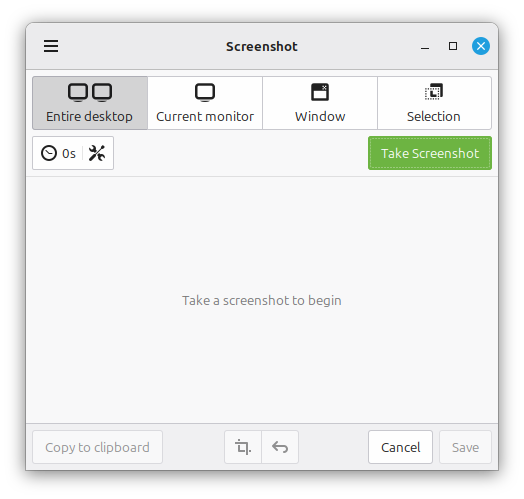
You can capture a window with or without its shadow.
If you have multiple monitors, you can choose between capturing all of them or just one of them.
You can crop screenshots before copying or saving them.
Under the hood, many changes were made to make screenshots look cleaner and to accommodate the differences between CSD (Client Side Decoration) and SSD (Server Side Decoration) windows.
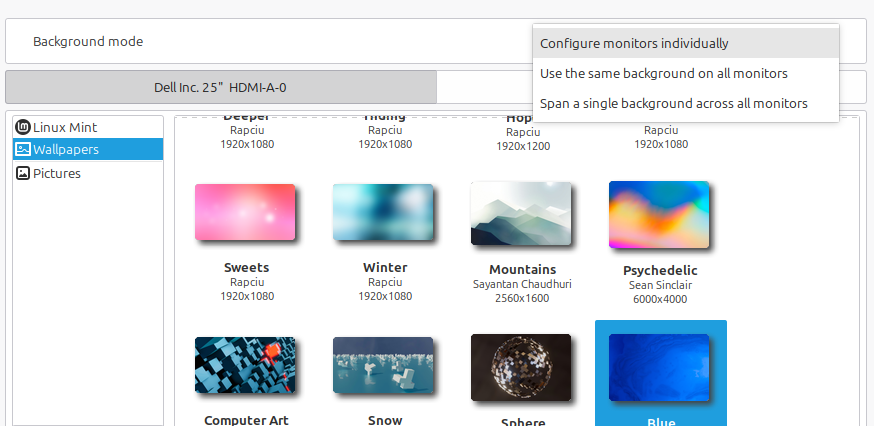
Each monitor can now have its own wallpaper. Or you can make a single wallpaper span across your monitors.
The grouped window list applet now uses scrollbars when it runs out of room.
Ambient light sensors are now supported.
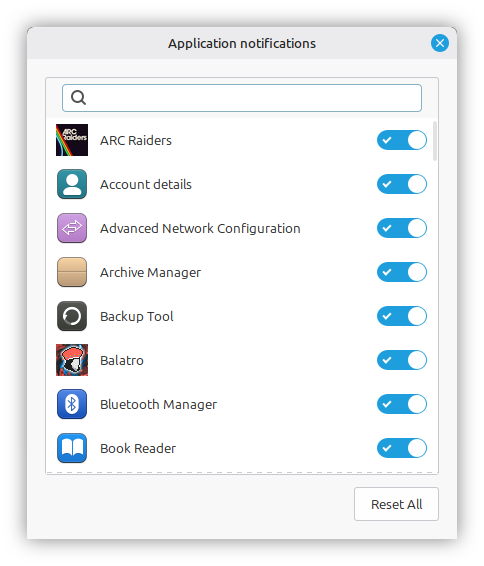
You can turn notifications on or off for each app.
Cinnamon now handles mounting, unmounting and autorun directly.
Improvements were made to make it clear when a removable drive is safe to unplug. The sidebar shows a specific icon and tooltip to indicate that the drive is not ready to be unplugged yet. If the drive is unplugged too early, a notification pops up to explain why that's unsafe.
When you copy or move files to a removable drive, Linux can hold some of the data in cache while the drive catches up. That data used to be reported to Nemo as already written, so the progress looked fast but the drive needed extra time even after the transfer appeared to be finished. Nemo now takes the cache into account and reports what's actually been written to the drive. It might take longer for the progress bar to reach 100%, but when it does, it means all the data has been written.
Nemo can restore the tabs from its last window.
Clutter Dialogs (for polkit, logout, etc.) are no longer modal. They still stay on top, but you can drag them around and access the rest of the desktop while they're showing.
WPA3 (Wi-Fi Protected Access 3) and OWE (Opportunistic Wireless Encryption) networks are now supported.
The Cinnamon session now integrates with systemd’s graphical-session target. Applications launch in their own systemd scopes, and the background service runs as a systemd user service.
Support was added for systemd-oomd. A notification is shown when an application is killed.
CJS was upgraded to run on Mozilla’s SpiderMonkey 140 JavaScript engine.
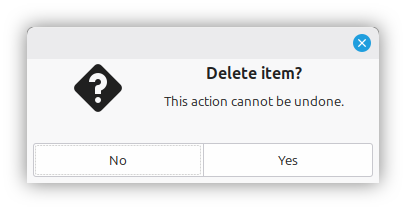
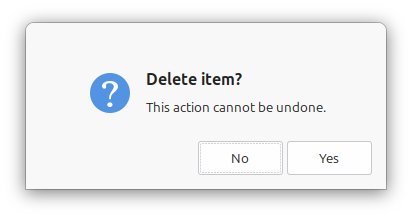
Dialogs have a cleaner layout, with more space between buttons, clearer titles and larger icons that draw attention to the message.
Mint-Y’s dark theme has improved colors and contrast.
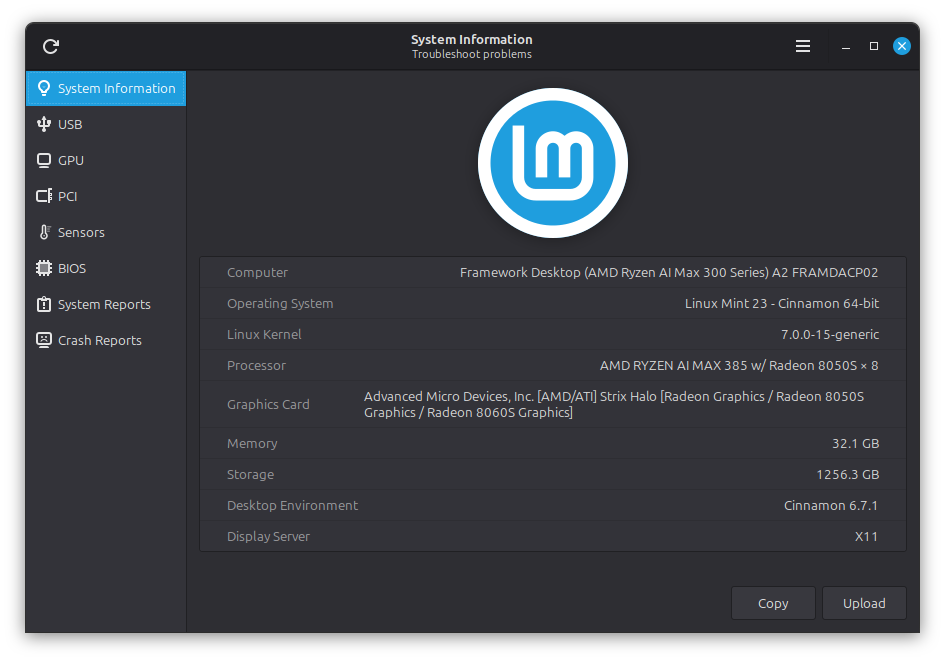
Frames, scrollable areas and lists now have slightly rounded corners, matching the buttons and drop-down menus.
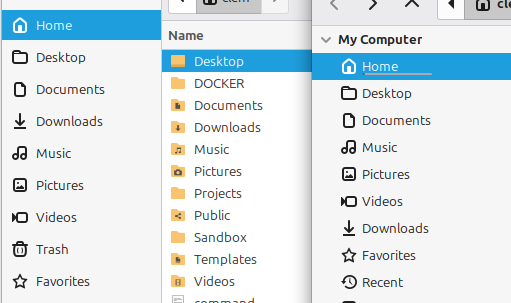
Mint-Y, Mint-L and Mint-X now use XSI icons in file dialogs. When you open a file from an application like Xed, you’ll see the same file and folder icons as in Nemo.
Live Installer, which is already used in LMDE, replaces Ubiquity in Linux Mint. It is much faster, more stable and features a clean, modern codebase which is easier to maintain.
Fingerprint authentication was improved in the login screen. You no longer need to press Enter after scanning your fingerprint.
Timeshift has new menu options to temporarily pause automated snapshots.
The Xfce status tray now supports multiple rows.
Xenity brings back the exact same features, look and feel, and syntax of Zenity 3.44 (GTK3). All software which used Zenity was migrated to Xenity.
Linux Mint 27 features a Linux kernel 7.0 and an Ubuntu Resolute package base.
HWE ISOs are released as newer kernels become available.
Linux Mint 27 will receive security updates until 2031.